
Why Invite Team Members?
You may want other people involved at different stages of your project. For example, you might have:- A developer helping refine functionality
- A designer reviewing the interface
- A marketing team preparing the launch
- A business partner reviewing progress
- A team member managing content
- Someone testing the application
Your AIWA Workspace
Think of your AIWA account as the place where your products live. Inside it, you may have several projects:Invite a Team Member
Open the project or collaboration area where you want to add someone. Choose the option to invite a team member.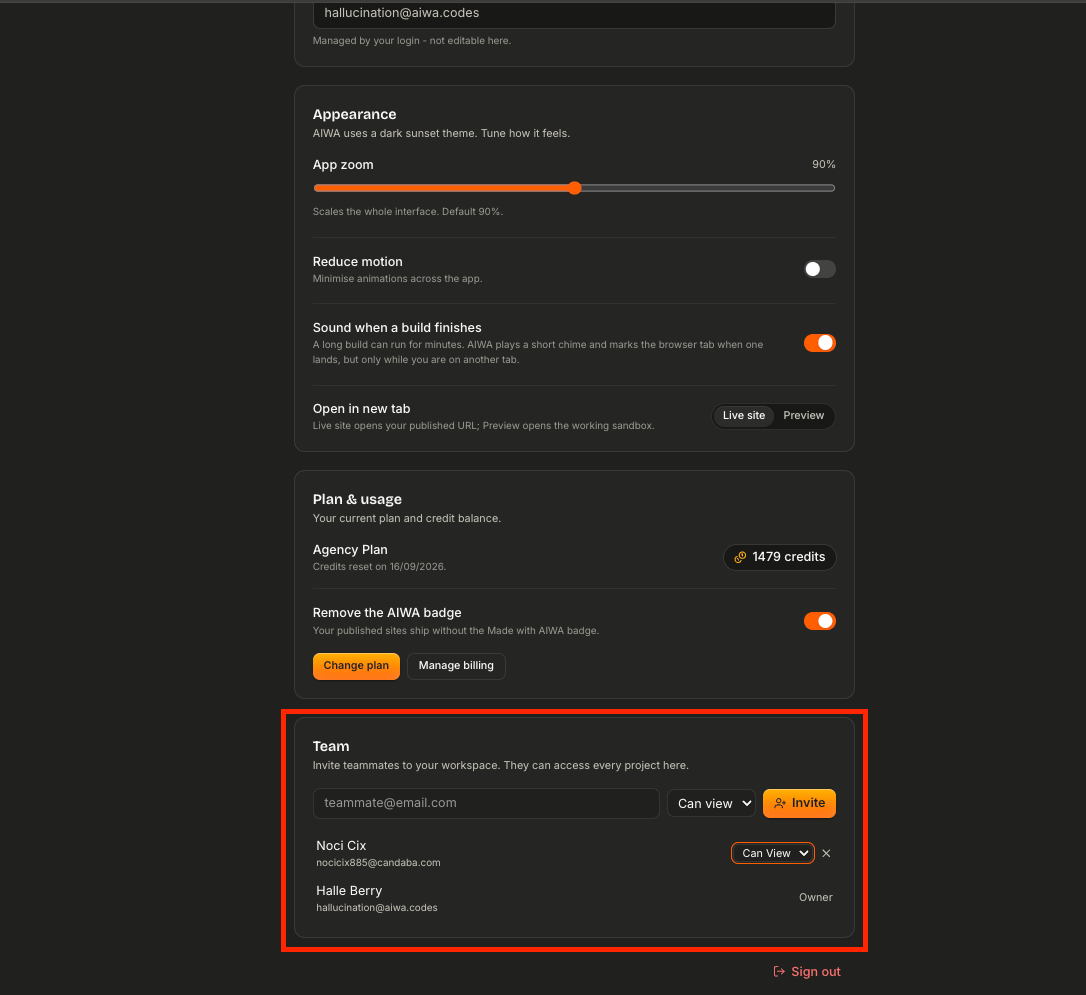
Send the Invitation
Once you’ve entered the team member’s information, send the invitation.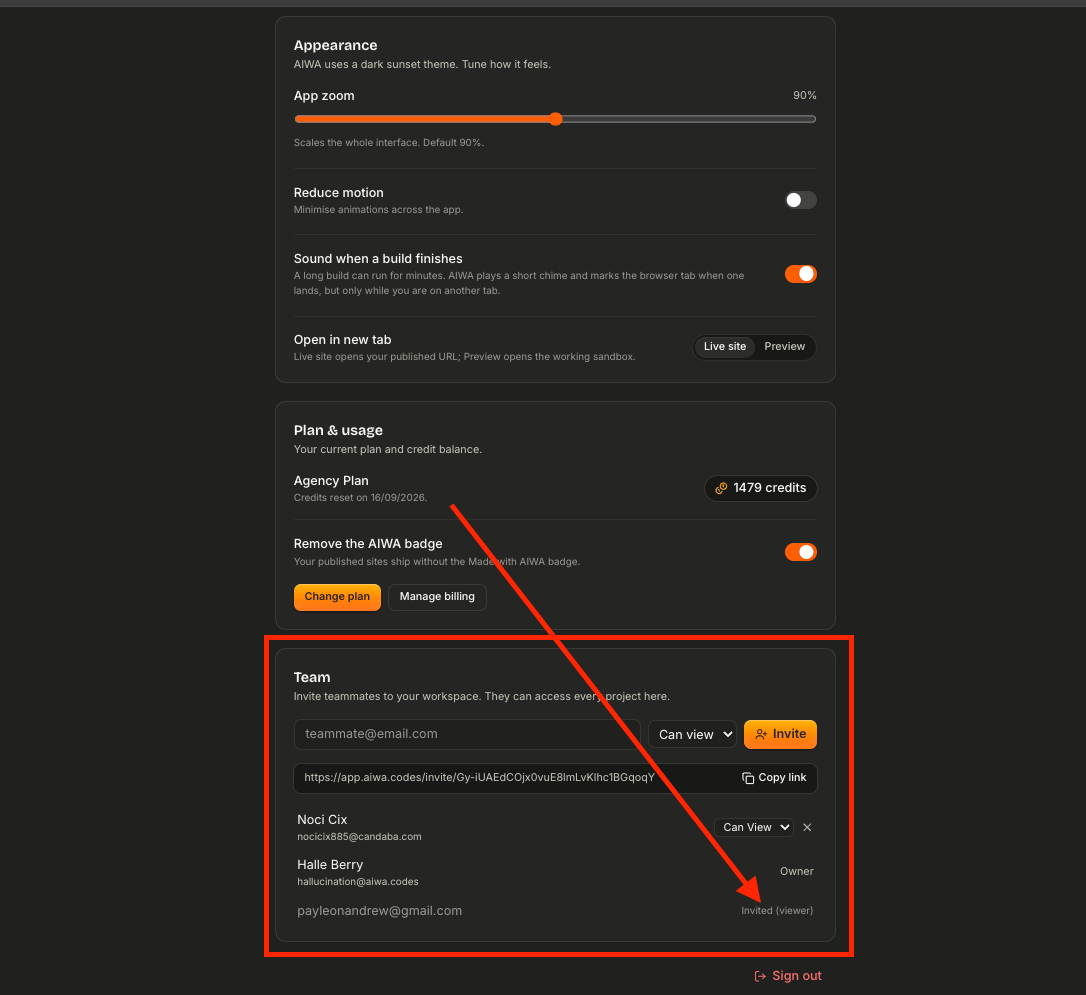
- Your AIWA password
- Your email password
- Your personal login
- Your billing credentials
Choose Access Carefully
Not everyone needs the same level of access. For example, someone helping you actively build the application may need more access than someone who only needs to review the project. Conceptually:Working With a Developer
Suppose you’re building a SaaS product and another developer is helping you. Your workflow could look like:Working With a Designer
You may want a designer to review:- Layout
- Typography
- Navigation
- Mobile responsiveness
- User experience
- Branding
- Visual consistency
Working With Your Internal Team
AIWA collaboration can also support internal product teams. For example:Working With Clients
Agencies may also need to involve clients in the project lifecycle. For example:Don’t Give Everyone Editing Access
More access isn’t always better. Someone who only needs to inspect the project shouldn’t necessarily be able to modify it. For example:Collaboration and Production Apps
Be especially careful when inviting people to work on applications that are already live. A production application may contain:- Real users
- Customer workflows
- Payments
- Integrations
- Business logic
- Important data
Collaborating With AIWA
Remember that your human team isn’t working alone. AIWA itself remains part of the product-development workflow. For example:- Plan features
- Build functionality
- Improve designs
- Debug problems
- Explore ideas
- Iterate on the product
Managing Team Members
As your project evolves, the people who need access may change. For example:Remove Access When It’s No Longer Needed
If someone is no longer working on the project, remove their access rather than leaving unused collaborator accounts indefinitely. This is particularly important when:- A contractor finishes their work
- A team member leaves
- A client relationship ends
- A temporary reviewer no longer needs access
- Someone changes responsibilities
Collaboration Without Credential Sharing
Avoid workflows like:Common Questions
Do I need to share my AIWA password?
No. Use AIWA’s invitation and collaboration functionality instead.Can I invite someone just to review my project?
Use the appropriate Viewer or review access rather than giving them unnecessary editing permissions. We’ll explain roles on the next page.Can I collaborate with clients?
Yes. AIWA’s Agency workflows can also support client review. We’ll cover Client Sharing & Review separately because clients often need a different experience from internal team members.Can my team continue working after the app is published?
Yes. Publishing doesn’t end development. Your team can continue improving the project, test the changes, and publish new versions when they’re ready.Should everyone on my team have the same permissions?
Usually not. Give people access based on what they actually need to do. Someone reviewing a project doesn’t necessarily need the ability to change it.A Good Collaboration Workflow
A healthy workflow might look like:Build Together
AIWA can be your AI product team without preventing your human team from participating.Next: Roles & Permissions
Inviting someone is only the first step. Next we’ll cover Roles & Permissions, specifically:- Editor
- Viewer
- What each role can do
- Who should receive each role
- Protecting projects from unnecessary changes
- Changing someone’s access
- Removing access
Roles & Permissions
Understand Editor and Viewer access and choose the right role for each collaborator.