
- Client file access
- Project documents
- Shared resources
- Internal team files
- Document workflows
- Linking application records to Drive files
- File organization
- Document-driven product features
What You Can Build
Google Drive can become part of many application workflows. Client portalsShow customers the files and documents associated with their projects.Project management
Link project records to folders or documents stored in Google Drive.Internal tools
Give team members access to approved company documents from inside the application.Onboarding
Show new customers the onboarding documents associated with their account.Document workflows
Allow users to choose a Drive document and use it as input for another application workflow.The application determines how the files fit into the user experience.
Before You Start
You’ll need a Google account and the authorization required by AIWA’s Google Drive connector. The connected account determines which Google Drive content the application can access based on the permissions granted.Only grant the permissions your application actually needs. The available Drive functionality depends on the permissions and capabilities supported by AIWA’s connector.
Connect Google Drive to AIWA
Open your AIWA project and navigate to Connectors. Find Google Drive and select it.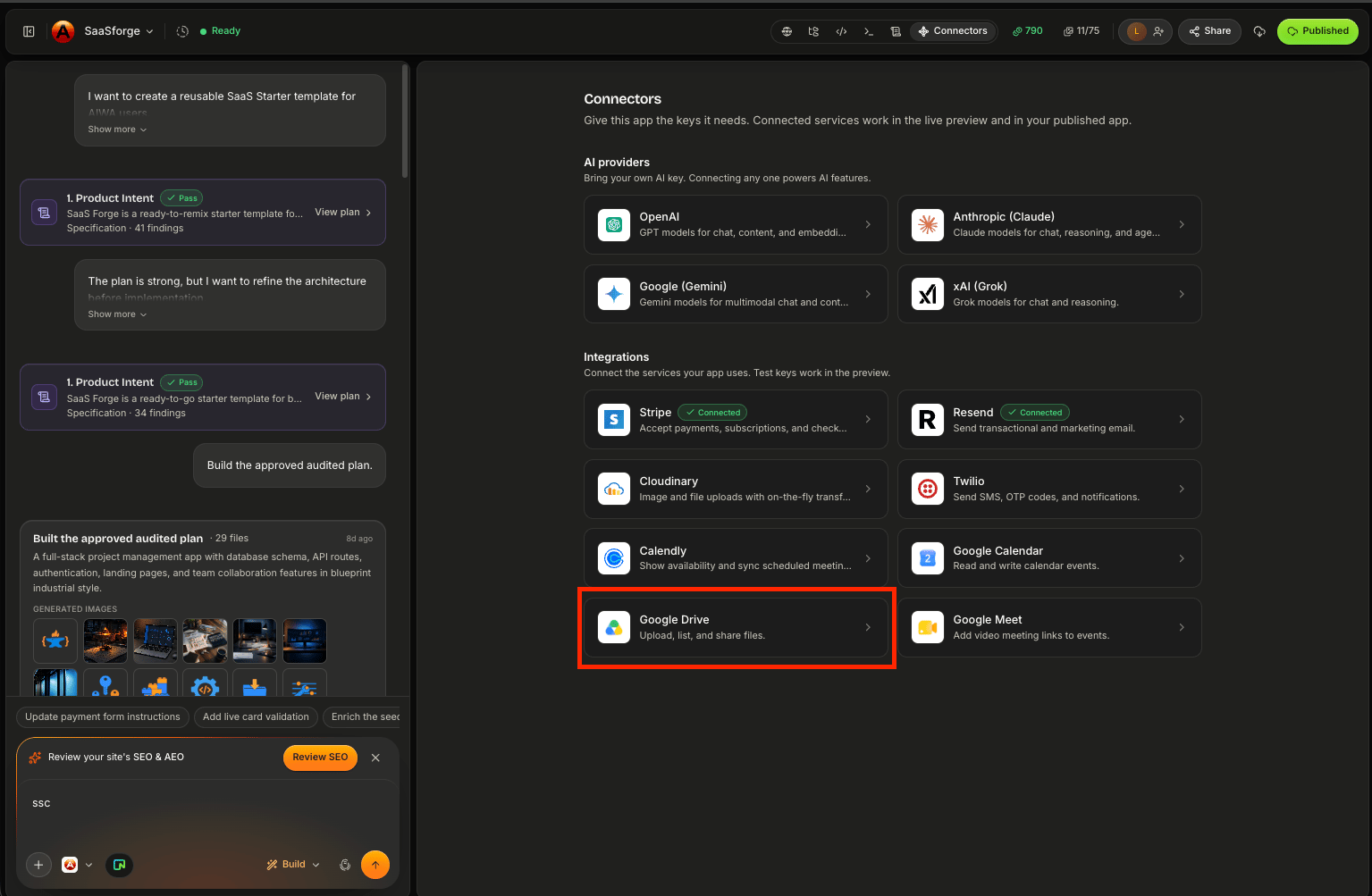
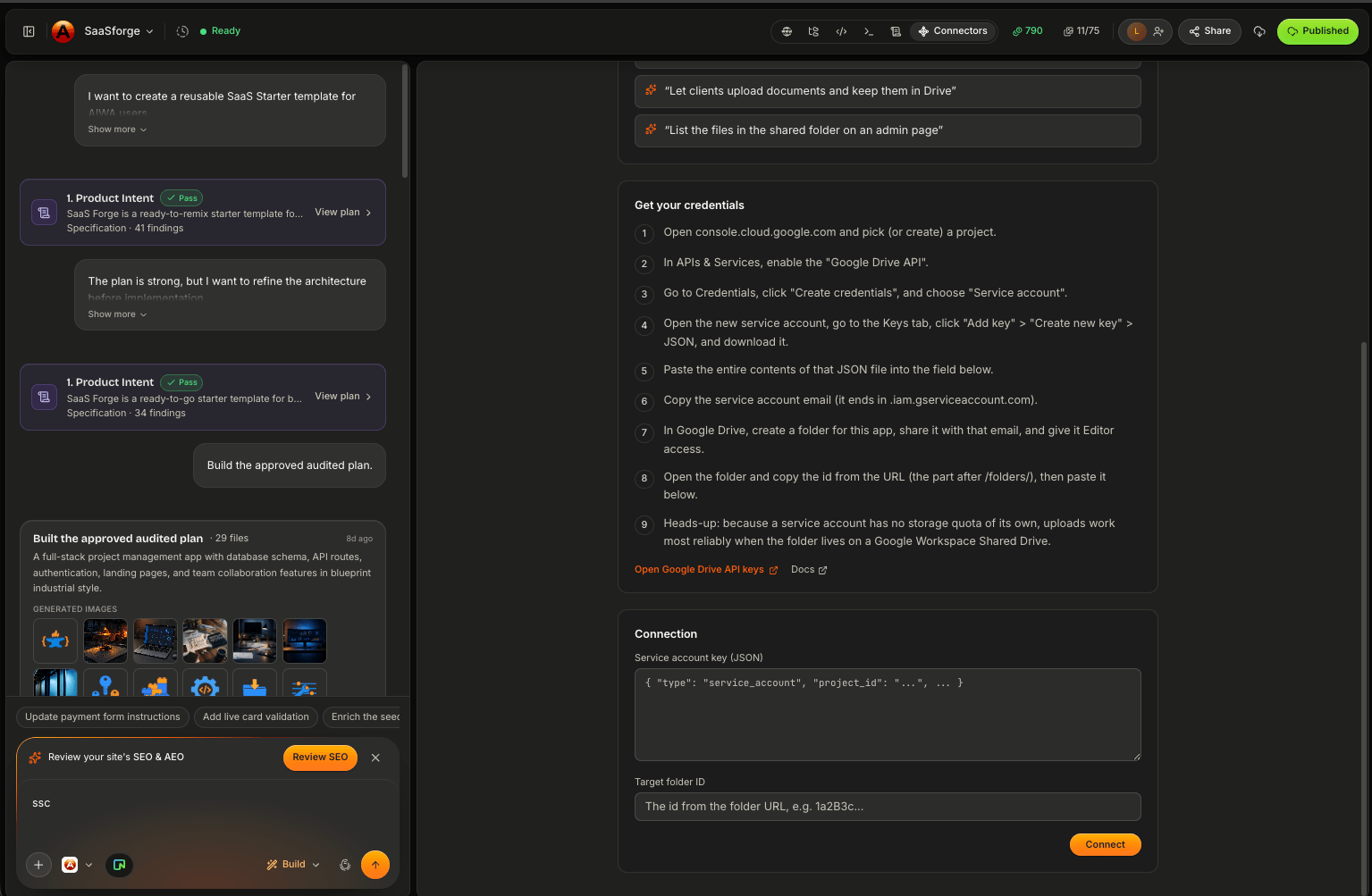
Build Your First Drive Workflow
Suppose you’re building a client portal. Tell AIWA:Add a Files section to each client project. Allow the application to display the Google Drive files associated with that project.Conceptually:
Application Records and Drive Files
A useful application usually needs to understand which files belong to which records. For example:Each project should have an associated Google Drive folder. Show the folder’s approved documents inside the project detail page.This connects application data with external file storage.
Example: Agency Client Portal
Imagine an agency manages multiple customers. Each customer has projects, and each project has files. You could ask:Add a Files tab to the client portal. Show Google Drive files associated with the customer’s projects and group them by project. Customers should only see files belonging to their own account.This combines:
- Authentication
- Authorization
- Project data
- Google Drive
Example: Project Resources
For a project management application:Add a Resources section to each project where team members can access documents stored in the project’s connected Google Drive folder.You might display:
Example: Customer Onboarding
Suppose new customers need onboarding documents. You could ask:After a customer completes onboarding, show the Welcome Guide, Implementation Checklist, and Training Resources from the connected Google Drive folder inside their dashboard.Now Drive participates in the onboarding experience.
Example: Document Review
Google Drive can also provide files for AI-powered workflows. For example:Allow authorized users to select a Google Drive document and generate an executive summary using Claude.Conceptually:
Example: Proposal Workflow
Imagine you’re building sales software. You could create:Allow sales representatives to attach an existing Google Drive proposal to an opportunity. Show the proposal from the deal detail page.Now the CRM and file system are connected.
Folder Organization
For applications with many records, folder organization can matter. For example:Each client project should be associated with one Google Drive folder. Don’t expose files from folders belonging to another customer.
Permissions Matter
A user being authenticated in your application doesn’t automatically mean they should see every file accessible through the connected Google account. Your application still needs authorization rules. For example:Customers should only see Drive files associated with projects belonging to their account. Internal team members can see all files within their assigned workspace.
Public vs Private Files
Some files may be intended for:- Everyone
- Signed-in users
- Specific customers
- Specific project members
- Internal staff only
Marketing resources can be viewed by all authenticated customers, but project documents should only be visible to users associated with that project.This gives AIWA clearer requirements for the file experience.
File Metadata
Your application may want to display information such as:- Filename
- File type
- Updated date
- Owner
- Project
- Folder
- Link
Searching Files
If a project contains many files, users may need search. For example:Add search to the project Files section so users can search documents by filename.Or:
Add filters for PDF, document, spreadsheet, and image files.The exact functionality depends on what information the Drive integration makes available.
Uploading Files
If the connector supports the required upload workflow, you may want users to add files to Drive through your application. For example:Allow project managers to upload approved documents to the project’s connected Google Drive folder from inside the application.You should also define:
- Who can upload
- Which folder receives the file
- Accepted file types
- Maximum file size
- Whether customers can upload
- What happens after upload
The available upload behavior depends on the Google Drive capabilities supported by your AIWA connector.
Deleting Files
File deletion is potentially destructive. If your application allows it, define the permission rules carefully. For example:Customers can download files but cannot delete them. Only workspace Owners and Admins can remove Drive files from the project.You may also want a confirmation step before destructive actions.
Updating Files
Google Drive files may change outside your AIWA application. For example, someone might update a document directly in Drive. Your application should ideally use the current Drive information rather than maintaining stale duplicate copies where appropriate. Think carefully about whether your application needs to:Reference the Drive fileor
Copy its contents into your own database.Those are different architectures.
Google Drive vs Cloudinary
Google Drive and Cloudinary serve different use cases. Cloudinary Best suited to application media workflows such as:- Profile photos
- Product images
- Property galleries
- Image optimization
- Media delivery
- Client documents
- Project resources
- Internal files
- Shared documents
- Drive-based business workflows
Google Drive + AI
Drive becomes particularly interesting when combined with AI models. For example:Allow users to select a document from Google Drive and generate a structured summary containing key points, decisions, deadlines, and action items.Or:
Analyze a selected proposal and extract the customer, price, scope, and delivery timeline into the CRM.This turns files into usable application workflows.
Google Drive + Client Portal
A strong combined workflow could be:Notify the customer through Resend whenever a new approved project file becomes available.Now another connector joins the workflow.
Google Drive + Resend
For example:When a project manager adds a new approved document to a customer’s project, email the customer and include a link back to the Files section of their portal.Conceptually:
Common Problems
Files don’t appear
First determine whether:- Google Drive is connected
- The correct account is authorized
- The expected folder/file exists
- The application is using the correct reference
- The signed-in user has permission to see it
Wrong customer’s files appear
This is a serious authorization issue. Tell AIWA:Customer A can see Google Drive files belonging to Customer B. Audit the file authorization and project-to-folder relationship immediately. Ensure users can only access files associated with projects they are authorized to view.
File link doesn’t work
Check whether the file still exists and whether the user’s access model allows them to open it.Files are outdated
Determine whether your application is storing stale metadata rather than retrieving the current Drive information where appropriate.Authorization fails
Check:- Correct Google account
- Completed authorization
- Granted permissions
- Whether the connector is still active
Debugging Google Drive
A good Debug Mode prompt might look like:Expected: When a customer opens the Files tab, they should see documents associated with their projects. Actual: The project loads correctly, but the Files tab is empty. The Google Drive folder contains documents. Other project functionality works normally. Error: [PASTE ERROR IF AVAILABLE] Debug the Google Drive integration and project-to-folder relationship without changing the rest of the portal.This helps isolate the file workflow.
Test Your Drive Workflow
Before publishing, test:- Correct Google account
- Correct folder
- File listing
- File links
- Customer authorization
- Team authorization
- Multiple customers
- Multiple projects
- Empty folders
- Missing files
- Renamed files
- Updated files
- Uploads, if supported
- Deletion permissions, if supported
- Mobile experience
A Good Google Drive Prompt
Define:- What files are involved?
- Which application record owns them?
- Who can access them?
- Where should they appear?
- What actions can users perform?
Add a Files tab to each client project. Associate each project with its Google Drive folder and show the files from that folder inside the project. Customers should only see files belonging to projects associated with their account. Internal workspace members can see files for projects they have access to. Display filename, file type, and last updated date, and provide an Open action. Customers must not be able to delete files.That’s much stronger than:
Connect Google Drive.
Think in File Workflows
A useful mental model is:Next: Request a Connector
You’ve now covered the currently documented AIWA connectors:- Stripe
- Resend
- Twilio
- Cloudinary
- OpenAI
- Anthropic
- Google Gemini
- xAI
- Calendly
- Google Calendar
- Google Meet
- Google Drive
Request a Connector
Learn how to request a new integration when the one you need isn’t available.