
- AI assistants
- Content generation
- Summarization
- Classification
- Information extraction
- Customer support
- Document analysis
- Personalized recommendations
- Structured data generation
- AI-powered workflows
AIWA vs OpenAI
It’s important to understand the difference. You are already using AIWA to build and evolve your application. For example:Build a customer support dashboard with tickets, customers, agents, and reporting.That’s AIWA helping you create the product. But suppose the product itself needs an AI feature:
Add an AI assistant that reads a support ticket and drafts a suggested response for the support agent.That’s where an AI provider such as OpenAI can become part of the application you’re building. Conceptually:
What You Can Build
There are many ways to use OpenAI inside an AIWA application. AI assistantsAdd an AI assistant that helps users understand their analytics.Content generation
Generate three product descriptions from the product information entered by the user.Summarization
Add a button that summarizes long customer conversations into key points.Classification
Automatically classify incoming support tickets as Billing, Technical, Account, or General.Information extraction
Extract the customer’s name, company, budget, timeline, and requirements from their enquiry.Recommendations
Analyze the customer’s preferences and suggest the most relevant products.Workflow automation
When a new sales lead arrives, generate a short qualification summary before displaying it in the CRM.These are AI capabilities inside your product.
Before You Start
You’ll need an OpenAI account and the credentials required by AIWA’s OpenAI connector. API usage through OpenAI may incur charges according to your OpenAI account, model selection, and usage.AIWA doesn’t replace your OpenAI account when you’re using the OpenAI connector inside an application. The connector allows the product you’re building to communicate with the OpenAI service using your configured credentials.
Connect OpenAI to AIWA
Open your AIWA project and navigate to Connectors. Find OpenAI and select it.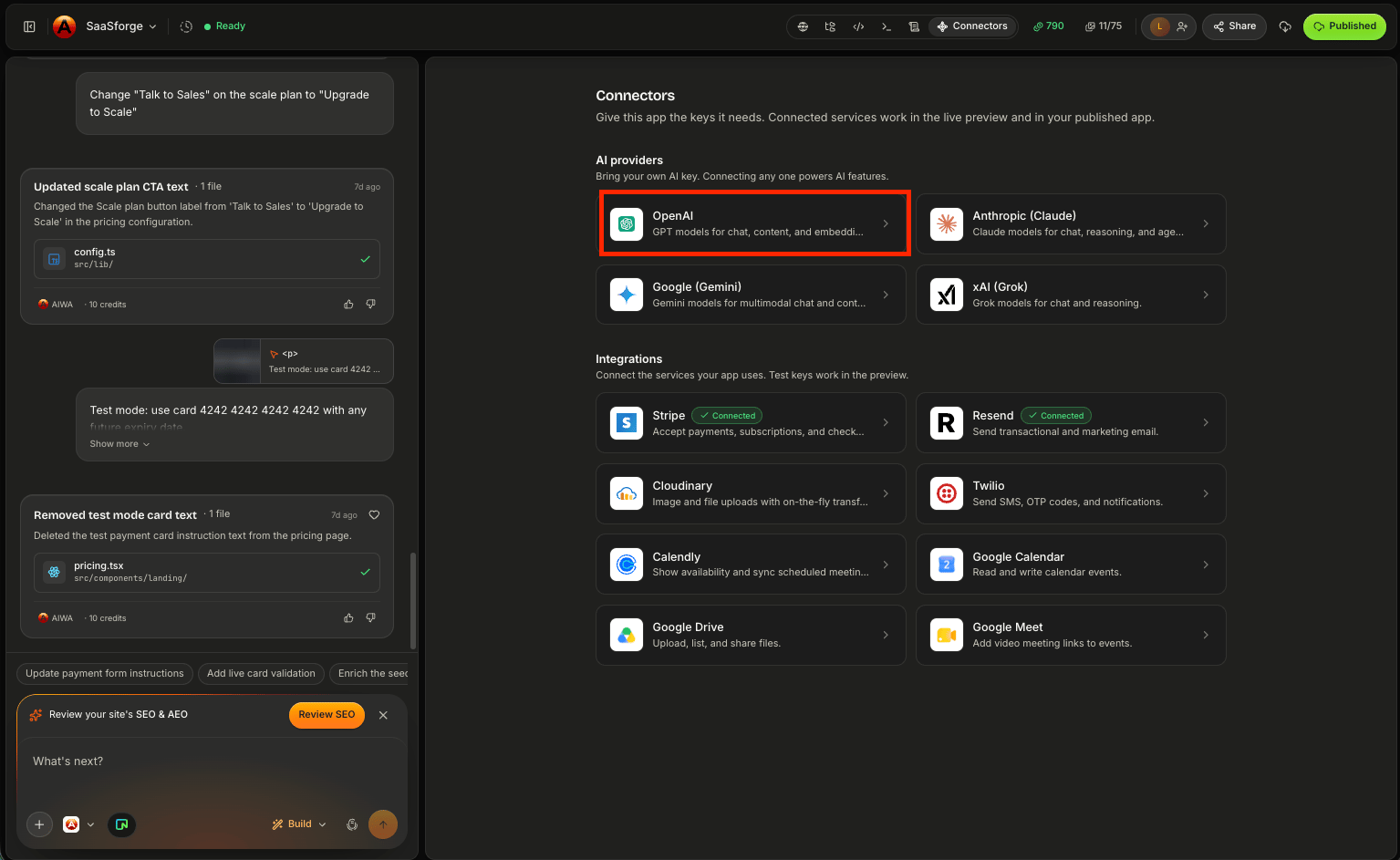
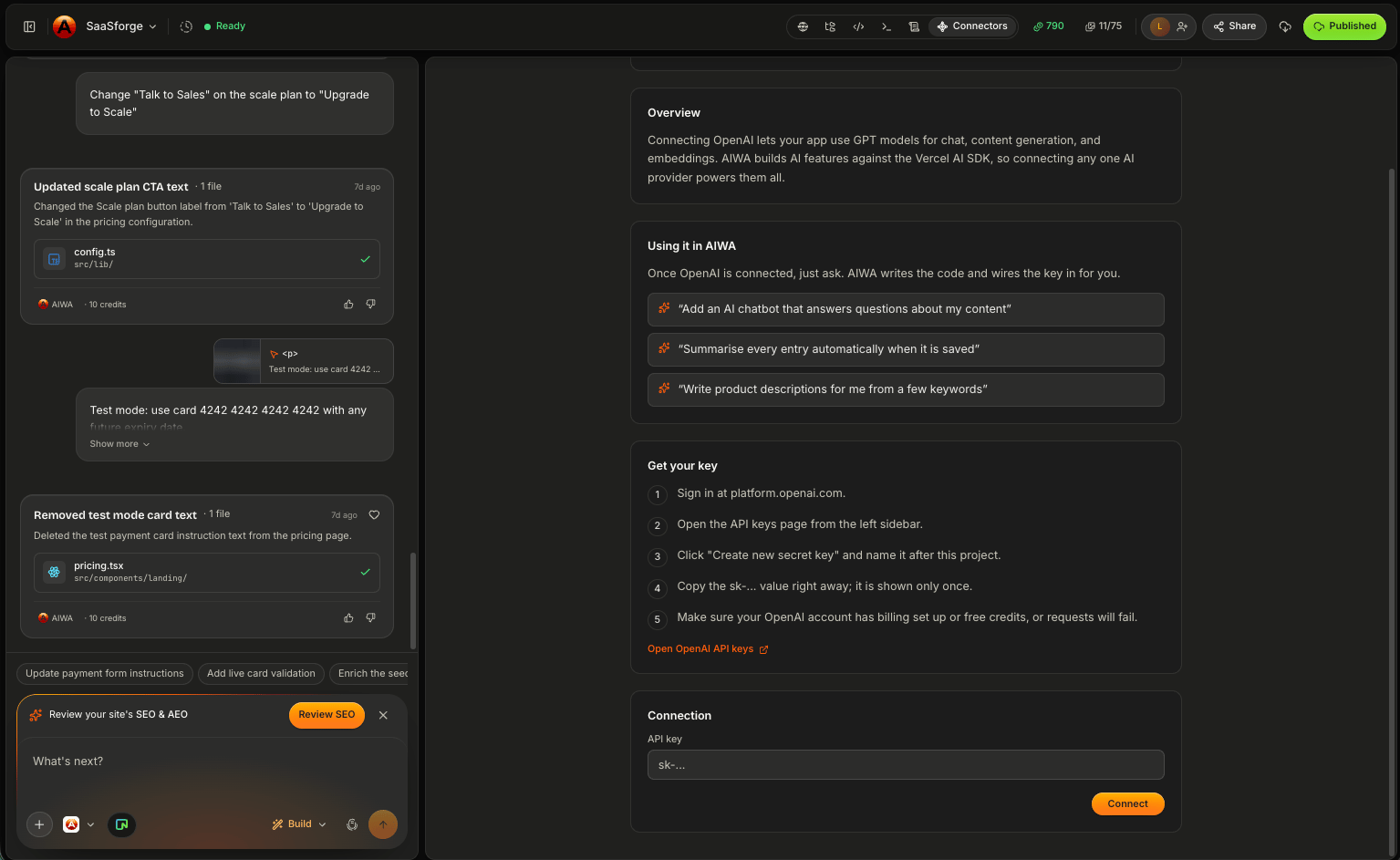
Build Your First AI Feature
Let’s create a simple content generator. Tell AIWA:Add an AI Product Description Generator. Users should enter a product name, product features, target audience, and tone. When they click Generate, use OpenAI to create three different product descriptions.The experience might look like:
Define the Input
AI features need context. Instead of:Add an AI writer.Define what information the feature should receive. For example:
Users should provide a product name, description, key features, target customer, and desired tone.Now your application can collect structured information before sending the appropriate context to the AI model. Better input generally gives the feature a better chance of producing useful output.
Define the Output
Don’t only tell AIWA what the model should receive. Tell it what you want back. For example:Generate three product descriptions between 100 and 150 words each. Each description should include a headline and body copy.Or:
Return a short summary, sentiment, and recommended next action.Or:
Extract the customer’s name, company, budget, timeline, and requested services.The clearer the expected result, the easier it is to design the feature around it.
Structured AI Output
Sometimes you don’t want a paragraph. You want information your application can actually use. Imagine a CRM receives:Hi, we’re looking for a new website for our property company. Our budget is around $15,000 and we’d like to launch within eight weeks.You might want OpenAI to extract:
Example: Support Assistant
Suppose you’re building customer support software. You could ask AIWA:Add an AI Draft Reply button to support tickets. When clicked, send the ticket message and recent conversation context to OpenAI and generate a suggested response. Show the draft in the reply editor but don’t send it automatically.That last sentence matters. The workflow becomes:
Example: Lead Qualification
OpenAI can also participate in automated workflows. For example:When a new lead is submitted, use OpenAI to analyze their message and create a short qualification summary. Identify their likely service requirement, urgency, and purchase intent. Save the result to the lead record.Conceptually:
Example: Document Summarization
Suppose your application handles long documents. You could tell AIWA:Add a Summarize button to uploaded documents. Use OpenAI to generate an executive summary, key points, and recommended actions.The result might be:
Example: AI Content Generator
Imagine you’re building a marketing platform. Users enter:- Product
- Audience
- Offer
- Tone
- Platform
Generate five social media posts based on this information.You could also add:
Let users regenerate individual posts without regenerating the entire set.Or:
Allow users to edit generated content before saving it.This creates a complete AI product experience rather than just a Generate button.
AI Features Need Good UX
An AI integration isn’t complete simply because the model returns text. Think about the user’s experience before, during, and after generation. For example:- Generate
- Stop
- Retry
- Regenerate
- Edit
- Copy
- Save
- Delete
- Provide feedback
Loading States
AI responses can take time. Your application should make it clear that generation is happening. For example:Generating your analysis…rather than leaving the user wondering whether the button worked. You can ask:
Show a loading state while the AI response is being generated and prevent duplicate generation requests.
Error States
AI requests can fail. For example:If generation fails, keep the user’s original input and show a Retry button. Don’t clear the form.Good failure handling is particularly important when users have spent time entering information.
Saving AI Responses
Decide whether generated results should disappear when the page is closed or become part of the application’s permanent data. For example:Save generated lead summaries to the lead record so sales agents don’t need to regenerate them every time they open the lead.Or:
Don’t save generated suggestions until the user clicks Save.This is a product decision.
AI + Your Database
AI becomes more useful when combined with application data. For example:Add an AI-generated customer summary to the CRM. Use the customer’s profile, recent deals, and support history to create a concise summary for the account manager.However, only send information that the feature actually needs.
Give the AI Relevant Context
An AI feature can only reason about information available to it. Suppose you ask:Recommend which lead the sales agent should contact next.The AI may need context such as:
- Lead status
- Budget
- Last contact date
- Purchase intent
- Recent activity
Don’t Send Everything Automatically
More context isn’t always better. Avoid sending an entire database when the feature only needs a few relevant fields. For example, a product-description generator probably needs:- Product name
- Features
- Audience
- Tone
- Customer database
- Billing records
- Internal team notes
Sensitive Data
Be careful when designing AI features involving private or sensitive user information. Before sending application data to an external AI provider, consider:- What information is being sent
- Whether the feature actually requires it
- What your users expect
- Your privacy obligations
- The external provider’s applicable policies and configuration
Control What the AI Does
For important workflows, don’t give AI output more authority than necessary. For example, there is a meaningful difference between:AI recommends which leads should be prioritized.and:
AI automatically deletes leads it considers low quality.Likewise:
AI drafts a customer response for review.is different from:
AI automatically sends whatever response it generates.For actions affecting money, customer communication, permissions, deletion, or other important outcomes, consider whether human review or additional validation should be required.
Example: Human-in-the-Loop
A useful pattern is:Generate a personalized sales email using OpenAI. Show the email to the sales representative for editing and approval before sending it through Resend.Now two connectors can work together:
AI Usage Has a Cost
Requests made through the OpenAI connector can incur API usage charges on the connected OpenAI account. Usage depends on factors such as:- Model
- Amount of input
- Amount of output
- Number of requests
- Application usage
Prevent Unnecessary Requests
You may want to prevent users from accidentally generating the same thing repeatedly. For example:Disable the Generate button while a generation is already in progress.Or:
Don’t automatically regenerate the summary every time the user opens the page. Use the existing summary unless they request a new one.These decisions can improve both user experience and API efficiency.
Model Selection
Different OpenAI models may offer different capabilities, performance characteristics, and costs. If your feature requires a particular model, you can specify it. Otherwise, you can describe the task and let the implementation use an appropriate supported option. For example:This feature prioritizes speed and low cost because it classifies thousands of short support messages.Or:
This feature performs more complex analysis where reasoning quality is more important than response speed.The model should fit the product requirement.
Available OpenAI models and pricing can change over time. Refer to OpenAI for current model availability and API pricing.
Common Problems
AI feature doesn’t respond
Determine whether:- The button/action works
- The server request is being made
- OpenAI credentials are valid
- OpenAI returns an error
- The application fails to display the result
Output quality is poor
This isn’t always a connector problem. The instructions or context sent to the model may need improvement. For example:The AI-generated lead summaries are too generic. Analyze the current OpenAI prompt and improve it so summaries include the lead’s requirement, budget, urgency, objections, and recommended next action.
Output format is inconsistent
If your application needs structured information, tell AIWA explicitly. For example:The lead classifier sometimes returns paragraphs instead of the fields the application expects. Make the AI response structured and validate it before saving the result.
Responses are too slow
Ask AIWA to investigate:- Model selection
- Amount of context
- Output length
- Number of requests
- Application architecture
Usage is unexpectedly high
Investigate whether requests are being triggered unnecessarily. For example:OpenAI usage appears unusually high. Audit where AI requests are triggered and check whether the customer summary is being regenerated on every page load.
Debugging OpenAI
A useful Debug Mode request looks like:Expected: Clicking Generate Summary should analyze the lead and display a short qualification summary. Actual: The loading state appears, but no result is displayed. The lead data itself loads correctly. Error: [PASTE ERROR IF AVAILABLE] Debug the OpenAI generation workflow without changing the existing lead interface.Don’t include your API key in the debugging prompt.
Test Your AI Feature
Before publishing, test:- Normal inputs
- Very short inputs
- Long inputs
- Empty inputs
- Invalid inputs
- Loading states
- Failed generations
- Retry behavior
- Output formatting
- Saving results
- Regeneration
- User permissions
- API usage behavior
A Good OpenAI Prompt for AIWA
When asking AIWA to build an AI feature, define: Purpose What should the AI accomplish? Input What information does it receive? Output What should it return? Context What application data does it need? User experience How does the user interact with the result? Persistence Should the result be saved? Permissions Who can use the feature? For example:Add an AI Lead Summary feature using OpenAI. On each lead detail page, authorized sales users can click Generate Summary. Use the lead’s enquiry, budget, source, status, and recent activity to generate a concise summary containing their requirement, purchase intent, urgency, and recommended next action. Show a loading state while generating and allow the user to regenerate. Save the approved summary to the lead record.That’s a product specification, not merely:
Add ChatGPT.
Think in AI Workflows
A useful mental model is:Next: Anthropic (Claude)
OpenAI is one AI provider available through AIWA connectors. Next, we’ll look at Anthropic (Claude) and how you can use Claude-powered capabilities inside applications you build with AIWA. Because we’ve now covered the fundamentals of building AI features, the Claude page will focus primarily on:- Connecting Anthropic
- Building with Claude
- Choosing it for appropriate use cases
- Example workflows
- Troubleshooting
Anthropic (Claude)
Connect Anthropic and use Claude for reasoning-heavy AI features.