
Preview vs Published
While you’re building with AIWA, you can preview your application and see your changes as you work. Your published application is the live version that other people can access. Think of it like this:Before You Publish
Before publishing your project, take a moment to review the application. Check important areas such as:- Navigation
- Forms
- Authentication
- Mobile responsiveness
- Database functionality
- Images and media
- External integrations
- Payments, if applicable
- Permissions
- Error states
- Important user workflows
Publish Your Project
When you’re ready, use the Publish option inside your AIWA project.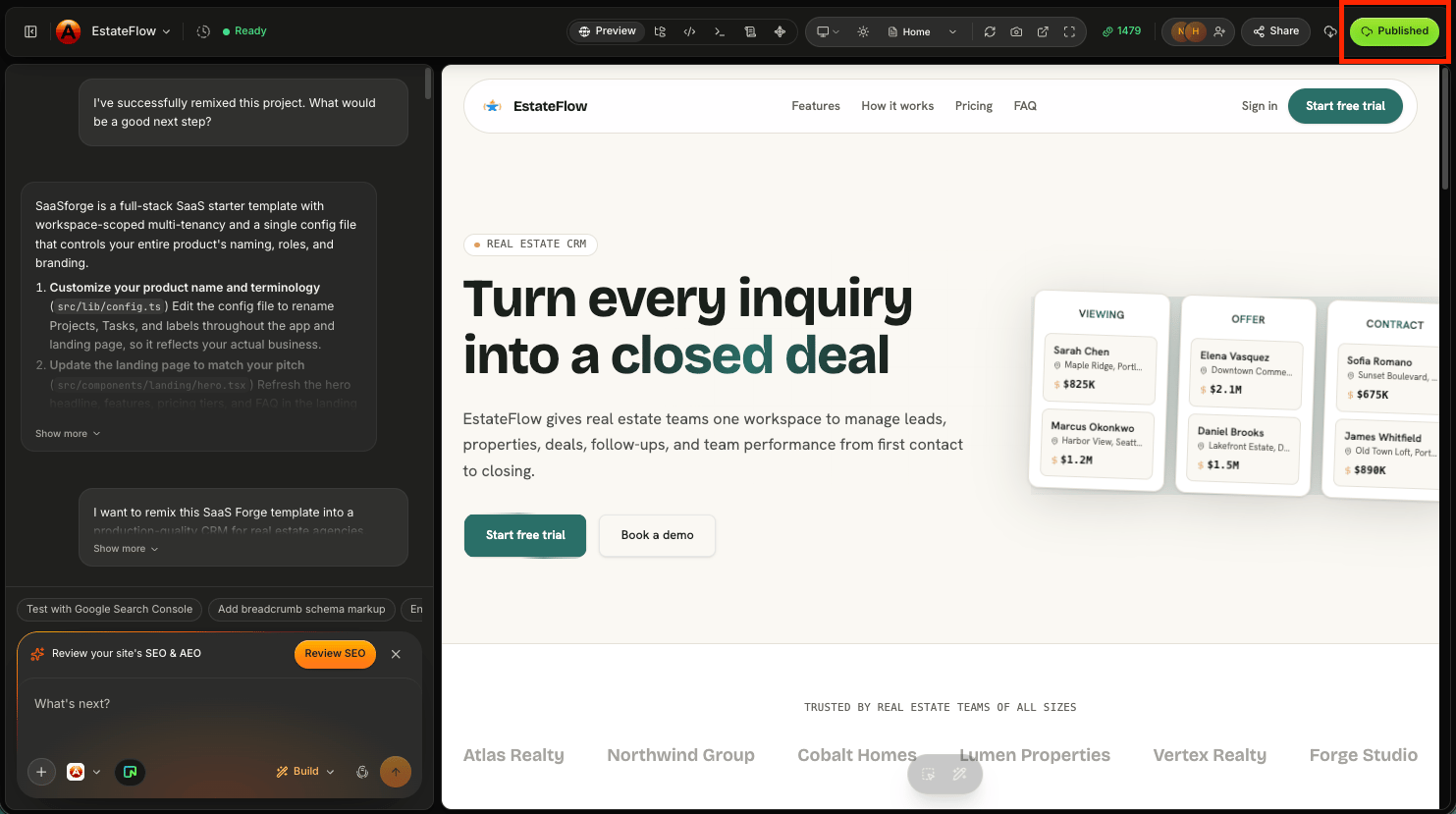
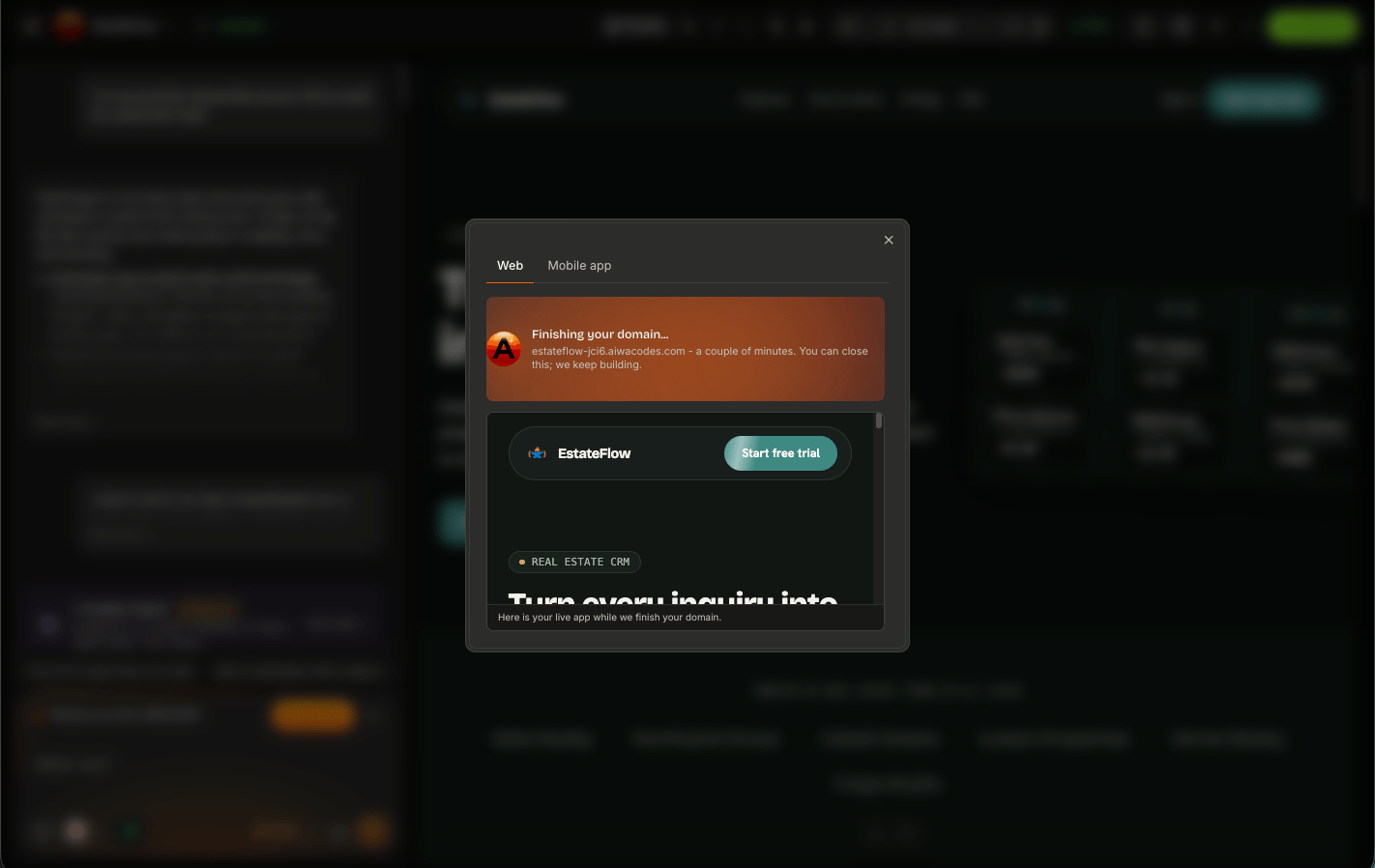
Your AIWA Live URL
After publishing, AIWA provides a live URL for your application. You can use this URL to:- Open your live application
- Share it with customers
- Send it to teammates
- Test the production experience
- Collect feedback
- Demonstrate your project
- Launch your product
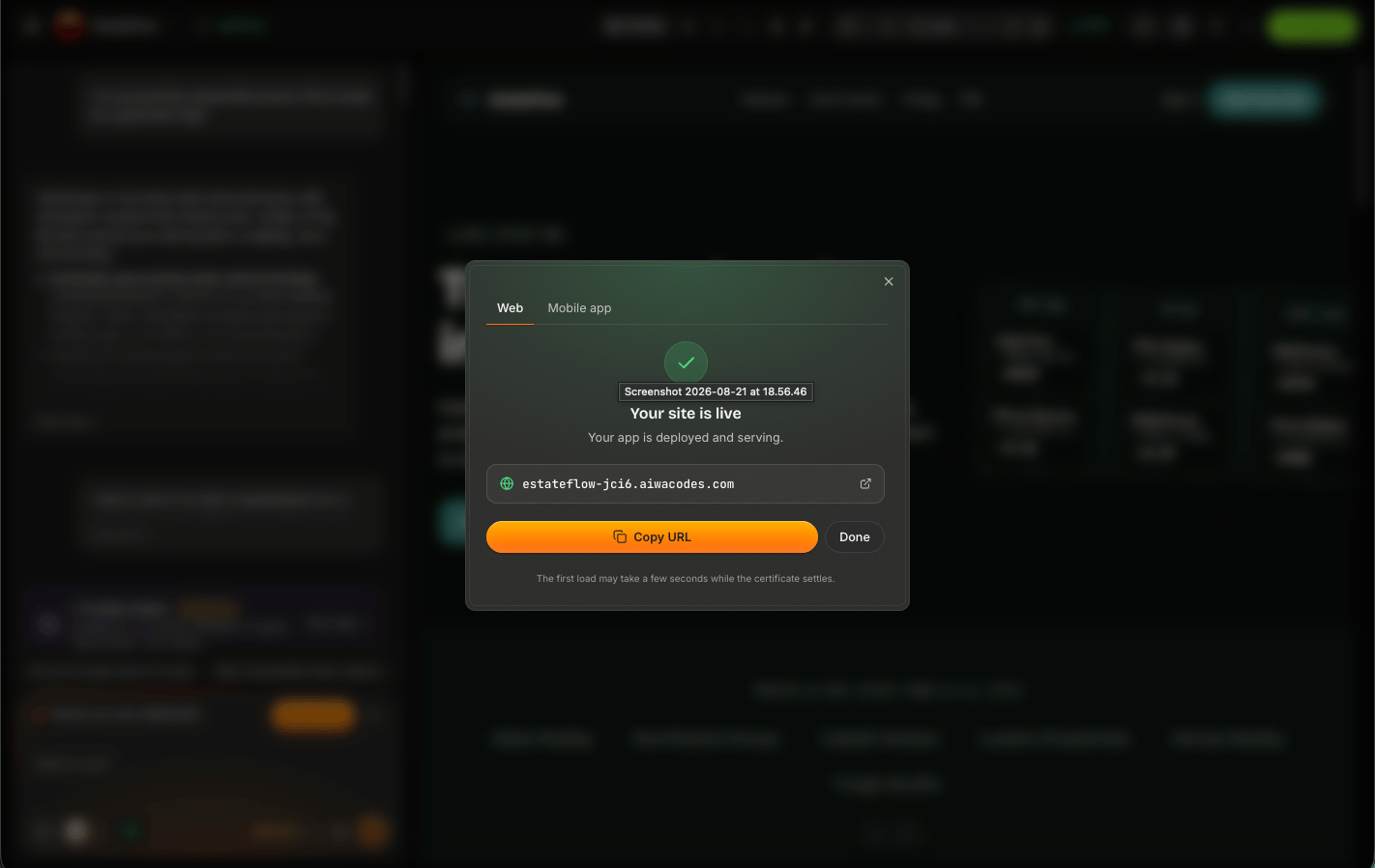
AIWA provides hosting for your published projects, so you can launch directly from AIWA without setting up separate hosting infrastructure.
Open Your Published Application
After deployment completes, open the live URL. Don’t assume that a successful deployment means every part of the application works perfectly. Test the actual published version. For example:Test the Live Version
Your published application should be tested separately from the editor preview. Try important workflows such as: Navigation Open different pages and verify that links work correctly. Authentication If your application requires accounts, test:- Sign up
- Sign in
- Sign out
- Protected pages
- Stripe
- Resend
- Twilio
- Cloudinary
- OpenAI
- Calendly
- Google services
Publishing a Website
Publishing isn’t limited to complex applications. You can also publish websites built with AIWA. For example:Build a professional website for a construction company with Home, About, Services, Projects, Testimonials, and Contact pages.Once you’re happy with the result:
Publishing a Web Application
The same process applies to more advanced products. For example:Build a CRM where sales representatives can manage leads, contacts, deals, tasks, and follow-ups.Your application may include:
- Authentication
- Database
- Dashboard
- CRM
- Integrations
- Permissions
Continue Building After Publishing
Publishing doesn’t lock your project. You can continue working with AIWA. For example, your first version might include:- Website
- Contact Form
- Customer Accounts
Add appointment scheduling.Then:
Add customer subscriptions.Then:
Add an admin dashboard.Then:
Add an AI customer support assistant.Your application can continue evolving. This connects directly to the principle we introduced in What is AIWA: Your first prompt is only the beginning.
Updating a Published Project
Suppose your application is already live and you ask AIWA to make changes. For example:Add a Pricing page and include it in the main navigation.You can review the updated application before making the new version live. The workflow remains:
Don’t Publish Every Change Immediately
For small visual changes, publishing quickly may be fine. For larger changes, review them first. This is especially important when modifying:- Authentication
- Payments
- Database structures
- User permissions
- Integrations
- Important customer workflows
- Existing production data
Share Your Live URL
Once your application is live, you can share the published URL with other people. For example:Custom Domains
Your AIWA live URL doesn’t have to be the final address customers use. Eligible plans can connect a custom domain. For example:Hosting Your Project Elsewhere
AIWA provides hosting for published projects. If you prefer to use your own infrastructure, you can export your project and deploy it separately. For example:Using your own hosting infrastructure is different from publishing directly through AIWA. When self-hosting, you’re responsible for configuring and maintaining your deployment environment.
Common Problems
Publishing takes longer than expected
Wait for the deployment process to finish before repeatedly attempting to publish again. If it appears stuck, check whether AIWA displays an error or deployment status.The live URL doesn’t open
Confirm that publishing completed successfully. If the deployment failed, use the error information provided by AIWA to troubleshoot the problem.Preview works but published app doesn’t
This is particularly useful information for Debug Mode. Tell AIWA:The application works correctly in Preview, but the published version fails when I open the live URL. Debug the production issue without changing the current design.Then provide the specific error or behavior.
My latest changes aren’t live
Confirm that you published the updated version after making your changes. Changes you’re previewing while building aren’t necessarily the same thing as the currently published version.An integration doesn’t work after publishing
Tell AIWA which integration fails and whether it works in Preview. For example:Stripe works during testing in Preview, but checkout fails on the published application. Debug the production Stripe configuration without changing the checkout interface.That gives AIWA much more useful context than:
Stripe doesn’t work.
Debugging a Published Project
A strong Debug Mode request might look like:Expected: Users should be able to submit the contact form on the published website. Actual: The form works in Preview, but submitting it on the live URL produces an error. Everything else on the published site works. Error: [PASTE ERROR IF AVAILABLE] Debug the published contact form without changing its current design.The distinction between Preview and Published is important.
Before Sharing Your Project
Use this quick launch checklist:- Homepage loads
- Navigation works
- Mobile layout works
- Forms submit
- Authentication works
- Database actions work
- Images load
- Integrations work
- Permissions are correct
- Important workflows are tested
- No test content remains
- No sensitive credentials are exposed
- Live URL works
From Build to Live
The complete AIWA workflow now looks like:Next: One-Click Deployment
Now that you understand what publishing means, the next page will look more closely at AIWA’s deployment process. We’ll cover:- What happens when you deploy
- One-click deployment
- Deployment status
- Updating an existing deployment
- What to do when deployment fails
One-Click Deployment
See how AIWA handles deployment in one click.