
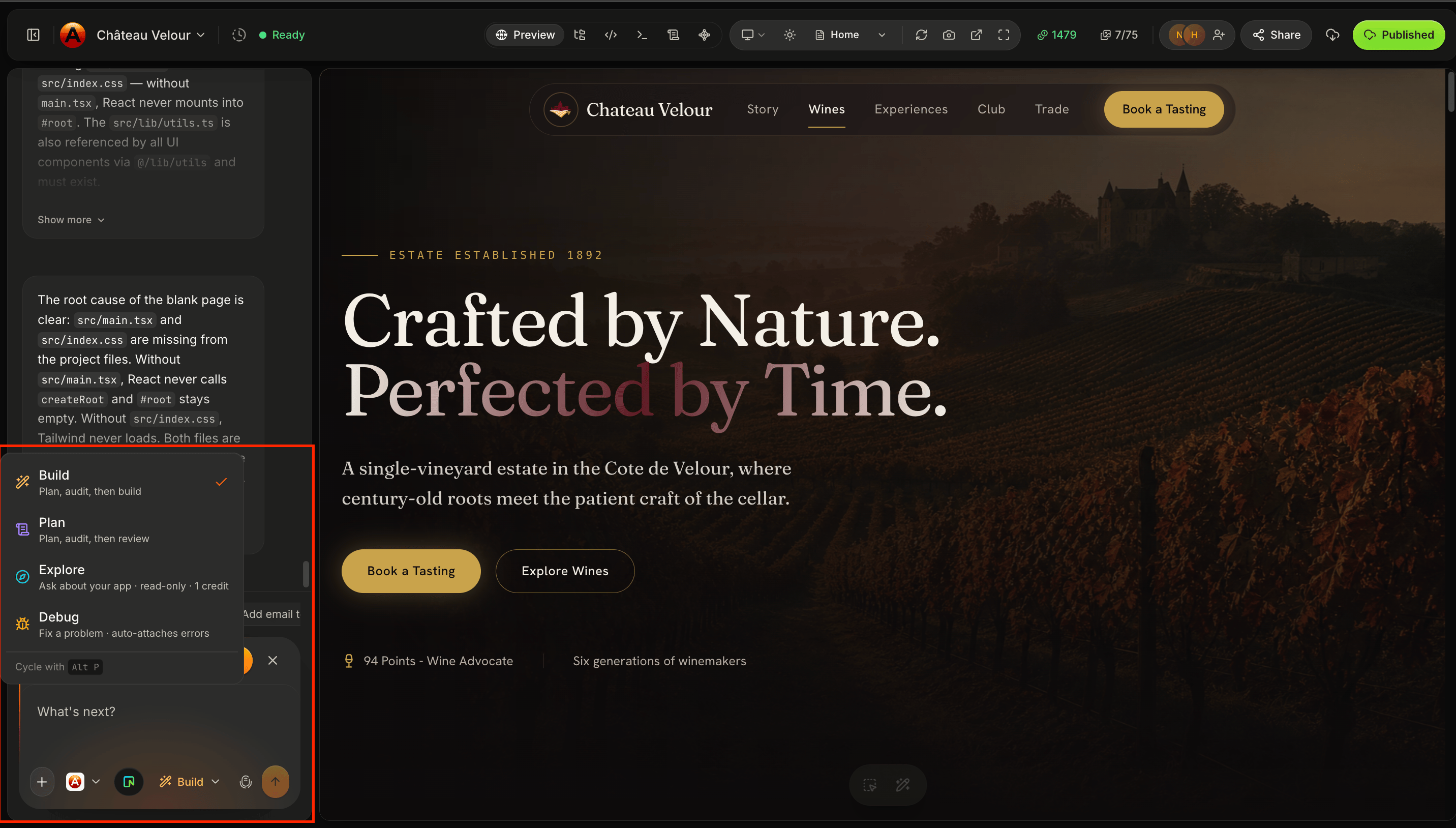
Build Mode
Build Mode is for taking action. Use Build when you know what you want AIWA to create, modify, or implement. For example:Add a pricing section with three plans to the homepage.Or:
Create a customer dashboard where users can view their active subscriptions and billing history.AIWA analyzes the request and works on the application. Use Build when you want to:
- Create a new application
- Add a page
- Add a feature
- Change an existing feature
- Update the design
- Connect functionality
- Modify application behavior
- Implement an approved plan
For straightforward requests, Build will often be the mode you use most frequently.
Plan Mode
Plan Mode is for thinking before building. Use Plan when the change is complex enough that you want AIWA to understand the requirements and determine an approach before implementation begins. For example:Add multi-tenant workspaces to this application. Each company should have separate users, data, roles, and permissions.Instead of immediately changing the application, Plan Mode allows AIWA to think through what needs to happen. A plan may cover areas such as:
- Product requirements
- User flows
- Application structure
- Data requirements
- Authentication and permissions
- Technical implementation
- Dependencies
- Potential issues
- Building a complex application
- Adding a major feature
- Changing application architecture
- Introducing new user roles or permissions
- Adding complex workflows
- Making changes that affect several parts of the product
If a change could significantly affect your existing application, planning it first can help you understand the scope before implementation.
Explore Mode
Explore Mode is for understanding before deciding what to do. Sometimes you don’t want AIWA to immediately build or change anything. You may want to understand your application, investigate an idea, evaluate possibilities, or figure out the best approach. For example:Analyze this application and explain how authentication currently works.Or:
What would we need to change to turn this single-user application into a team-based SaaS product?Or:
Review the current dashboard and suggest ways to improve the user experience.Explore Mode is useful when the outcome of the conversation isn’t necessarily code. Use Explore when you want to:
- Understand an existing feature
- Analyze your application
- Explore product ideas
- Compare possible approaches
- Review existing functionality
- Ask questions about your project
- Identify opportunities for improvement
- Understand the impact of a potential change
Debug Mode
Debug Mode is for investigating problems. Use Debug when something isn’t working as expected. Instead of treating the issue as a normal feature request, AIWA focuses on identifying the cause of the problem and determining how to fix it. For example:Users can submit the signup form, but they’re not being redirected to the dashboard after registration. Find out what’s causing this and fix it.Or:
The application throws an error whenever I try to create a new workspace. Debug the issue and fix the underlying cause.Debug Mode is useful for problems involving:
- Runtime errors
- Broken functionality
- Failed API requests
- Database issues
- Authentication problems
- Integration errors
- Unexpected application behavior
- Build errors
- Deployment-related problems
Give AIWA useful debugging context
When possible, include:- What you expected to happen
- What actually happened
- Steps that reproduce the problem
- Any error message you received
When I click “Create Workspace,” I expect the workspace to be created and the dashboard to open. Instead, nothing happens and the browser console shows a 500 error. Debug the complete flow and fix the underlying problem.The more useful context AIWA has, the easier it is to investigate the issue.
Choosing the right mode
Here’s a simple decision guide. I know what I want created Use Build.Add a customer testimonials section.I know what I want, but it’s a major change Use Plan first.
Add team workspaces, invitations, roles, and workspace-level data isolation.I’m not sure what I should do yet Use Explore.
Review my onboarding experience and suggest how we could improve activation.Something is broken Use Debug.
Google login redirects back to the login page instead of the dashboard. Find the cause and fix it.
You can switch modes as you work
The four modes aren’t separate workflows. They can work together throughout the lifecycle of your product. For example, imagine you want to add subscriptions to your SaaS application.1
Explore
Review the existing application and tell me what we would need to add subscription billing.Use Explore to understand the problem.
2
Plan
Create a plan for adding three subscription tiers with Stripe, feature access based on plan, and a customer billing portal.Use Plan to structure the implementation.
3
Build
Implement the approved subscription plan.Use Build to create it.
4
Debug
Subscription checkout works, but after payment the user’s account still shows the Free plan. Find and fix the problem.Use Debug when something doesn’t behave correctly.
Quick reference
There’s no penalty for switching modes. Choose the mode that best matches what you need from AIWA at that moment.
A simple rule to remember
If you’re unsure which mode to choose, remember: Build creates. Plan thinks ahead. Explore investigates. Debug fixes. As you spend more time building with AIWA, choosing a mode will become natural.Next: Plan Mode
Next, we’ll take a closer look at Plan Mode, how AIWA turns complex requirements into a structured specification you can review before building.Plan mode
Review and approve a spec before AIWA builds.