
How AIWA Handles Failed Builds
When AIWA encounters a problem while building your application, restoring the project isn’t the first action. AIWA first attempts to fix the issue. The recovery process looks like this:AIWA Tries to Fix the Problem First
Many development problems can be fixed without abandoning the current build. For example, AIWA may encounter an issue after:- Adding a new feature
- Changing application logic
- Updating a component
- Connecting an integration
- Modifying a workflow
- Restructuring part of the application
Automatic Recovery
Sometimes a build continues failing despite repeated attempts to fix it. Instead of allowing AIWA to continue indefinitely with a broken state, AIWA can fall back to a previous working version. Conceptually:Why Automatic Restore Matters
Imagine you have a working CRM. It includes:- Dashboard
- Contacts
- Leads
- Deals
- Tasks
- Authentication
- Database
Add an advanced reporting dashboard with revenue forecasting and pipeline analytics.During implementation, something goes wrong and the project stops building correctly. AIWA attempts to diagnose and repair the problem. If those attempts continue failing, AIWA can restore the project to the previous working state rather than leaving you with a consistently broken build. Your working CRM becomes the recovery point.
Your Project Evolves Through Versions
As you build, your application moves through different states. For example:Version History
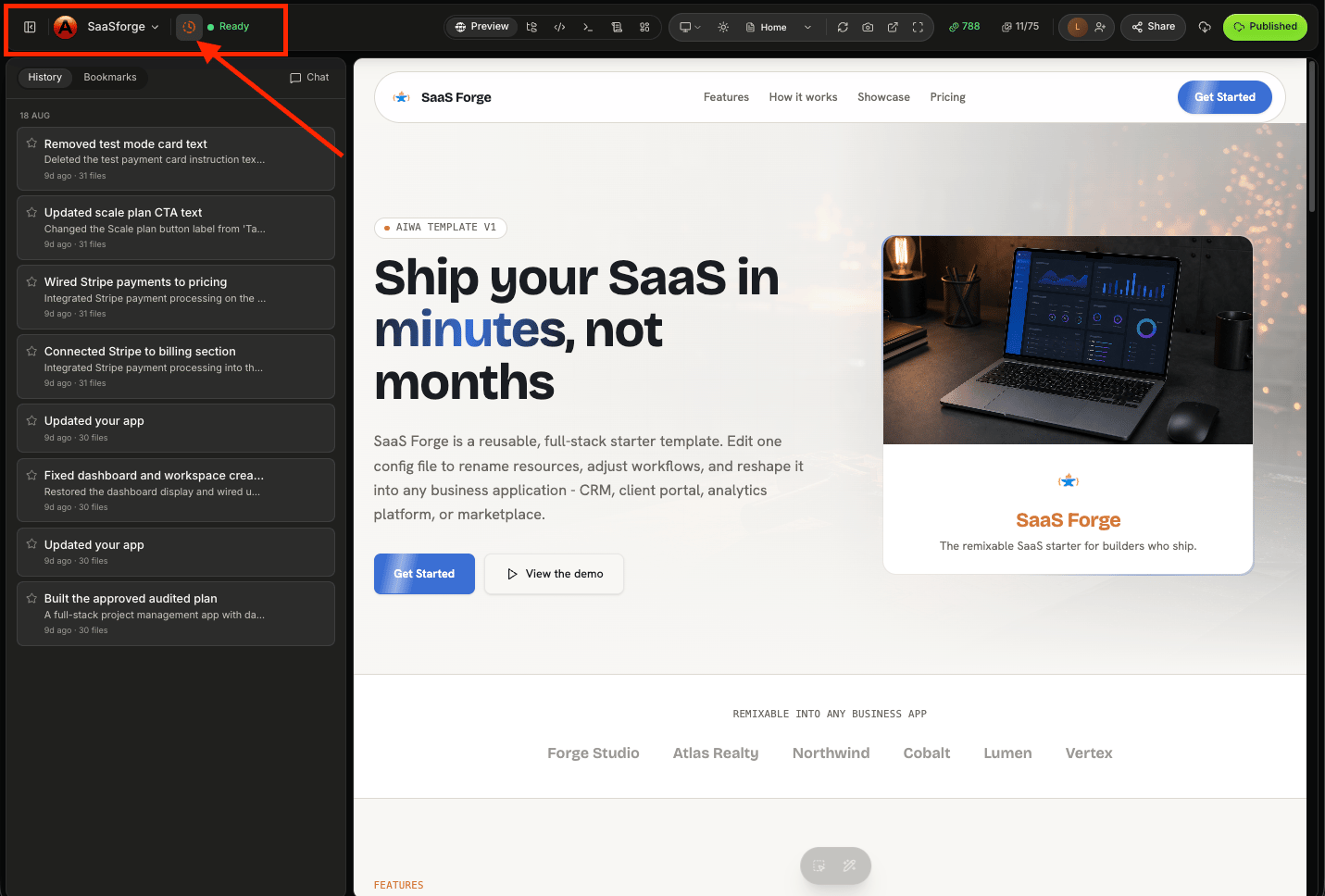
Automatic Restore vs Manual Restore
There are two different reasons you might return to an earlier version. Automatic Restore AIWA may restore a previous working version when the current build repeatedly fails and repair attempts aren’t resolving the problem.When AIWA Automatically Restores
Automatic restoration is useful when the current build becomes consistently unsuccessful. For example:What Happens After an Automatic Restore?
When AIWA restores the project, you’re returned to a previous working state. From there, you can continue building. You might approach the feature differently. For example, your original request was:Completely rebuild the CRM dashboard, reporting system, navigation, filters, and analytics experience.After restoration, you might break the work into smaller steps:
First, add the revenue analytics cards to the existing dashboard. Keep everything else unchanged.Then review the result before moving on. This can make complex changes easier to implement safely.
Failed Build Doesn’t Mean Lost Project
This is one of the important reasons AIWA maintains project versions. A failed iteration shouldn’t automatically mean starting over. Think of your project as a sequence of working states:You Can Still Use Debug Mode
Automatic recovery doesn’t replace Debug Mode. If your application builds successfully but a particular feature isn’t behaving correctly, Debug Mode is often the better choice. For example:The new search feature works, but pagination stopped working after the change. Fix pagination without removing search or changing the table design.The project itself isn’t failing to build. There’s simply a functional issue. In that situation:
Build Failure vs Functional Bug
Understanding the difference is useful. Build failure The application can’t successfully complete the build process. AIWA may need to:- Login works
- Dashboard works
- CRM works
- Search works
- Pagination broken
Automatic Restore Is the Last Resort
AIWA doesn’t need to revert every time something goes wrong. The preferred sequence is:- Detect
- Understand
- Fix
- Retry
- Validate
- Restore if recovery isn’t succeeding
Example: Adding Payments
Imagine your SaaS application is working correctly. You tell AIWA:Add subscription billing with three plans and restrict features based on the user’s subscription.AIWA begins implementing the feature. If the resulting build fails, AIWA first attempts to repair it.
Example: Major Redesign
Now consider a different scenario. You tell AIWA:Completely redesign my dashboard.The redesign builds successfully. Nothing is technically broken. You simply don’t like it. AIWA shouldn’t automatically restore the previous version because there hasn’t been a build failure. Instead, you can use version history to return to the design you preferred.
Use Plan Mode for Large Changes
Automatic recovery gives you protection, but preventing unnecessary failures is even better. For significant changes, use Plan Mode before building. For example:I want to restructure the entire authentication and onboarding system. Analyze the current implementation and create a plan first. Don’t make any changes yet.Then:
- Authentication
- Database architecture
- Payments
- Permissions
- Large redesigns
- Complex integrations
- Major application workflows
Make Complex Changes Incrementally
Instead of:Redesign the entire CRM, dashboard, billing, navigation, settings, and customer portal.Consider:
Protect Existing Functionality
When requesting changes, tell AIWA what must remain untouched. For example:Add advanced filtering to the customer table. Keep the existing search, pagination, sorting, customer editing, and table design working exactly as they do now.This gives AIWA clearer boundaries. It’s particularly useful when working with mature applications that already contain many interconnected features.
Version History and Published Applications
Version history and publishing are related, but they’re not the same thing. Your project may have:What About My Database?
Project version restoration and database recovery are different concepts. Your production database may contain:- Users
- Customers
- Orders
- Payments
- Projects
- Messages
- Bookings
What About Connectors?
After a major restore, test any important integrations used by the application. For example:- Stripe
- Resend
- Twilio
- Cloudinary
- OpenAI
- Google services
Common Questions
AIWA keeps failing to build. What should I do?
AIWA will attempt to diagnose and repair build problems during the development process. If the current build continues failing and AIWA can’t resolve it after multiple iterations, it can restore the project to a previous working version.Will AIWA restore after every failed build?
No. A failed build may be repairable. AIWA first attempts to fix the issue and continue the current build. Automatic restoration is the fallback when repeated repair attempts aren’t succeeding.My application builds, but one feature is broken. Will AIWA restore it?
A functional problem doesn’t necessarily require restoration. Use Debug Mode and describe the specific issue so AIWA can attempt to repair it without discarding working changes.Can I return to an earlier version even if nothing failed?
Yes. Version history can also be useful when you simply want to return to an earlier implementation or design.Does restoring a version restore my database?
Don’t treat project version history as a database backup system. Application versions and production data recovery are separate concerns.A Good Recovery Workflow
The overall AIWA recovery process can be thought of as:Build With a Safety Net
AIWA is designed for continuous product development. You can:Next: Production vs Development
Next is the final page of Section 5: Publishing & Domains: Production vs Development. We’ll explain:- Development vs production
- Preview vs live applications
- Test data vs real customer data
- Testing payments
- Making changes to live applications safely
- Protecting production users
- What to test before publishing
Production vs Development
Understand the difference between development and production and how to keep users safe.