
- Build the Android app
- Download the mobile source files
Mobile export is available on the AIWA Agency plan.
Before You Export
Your application should first complete the Mobile Readiness Scan. The workflow is:Your Mobile App Is Ready
When AIWA determines that your application is ready for mobile, you’ll be able to proceed with the mobile export.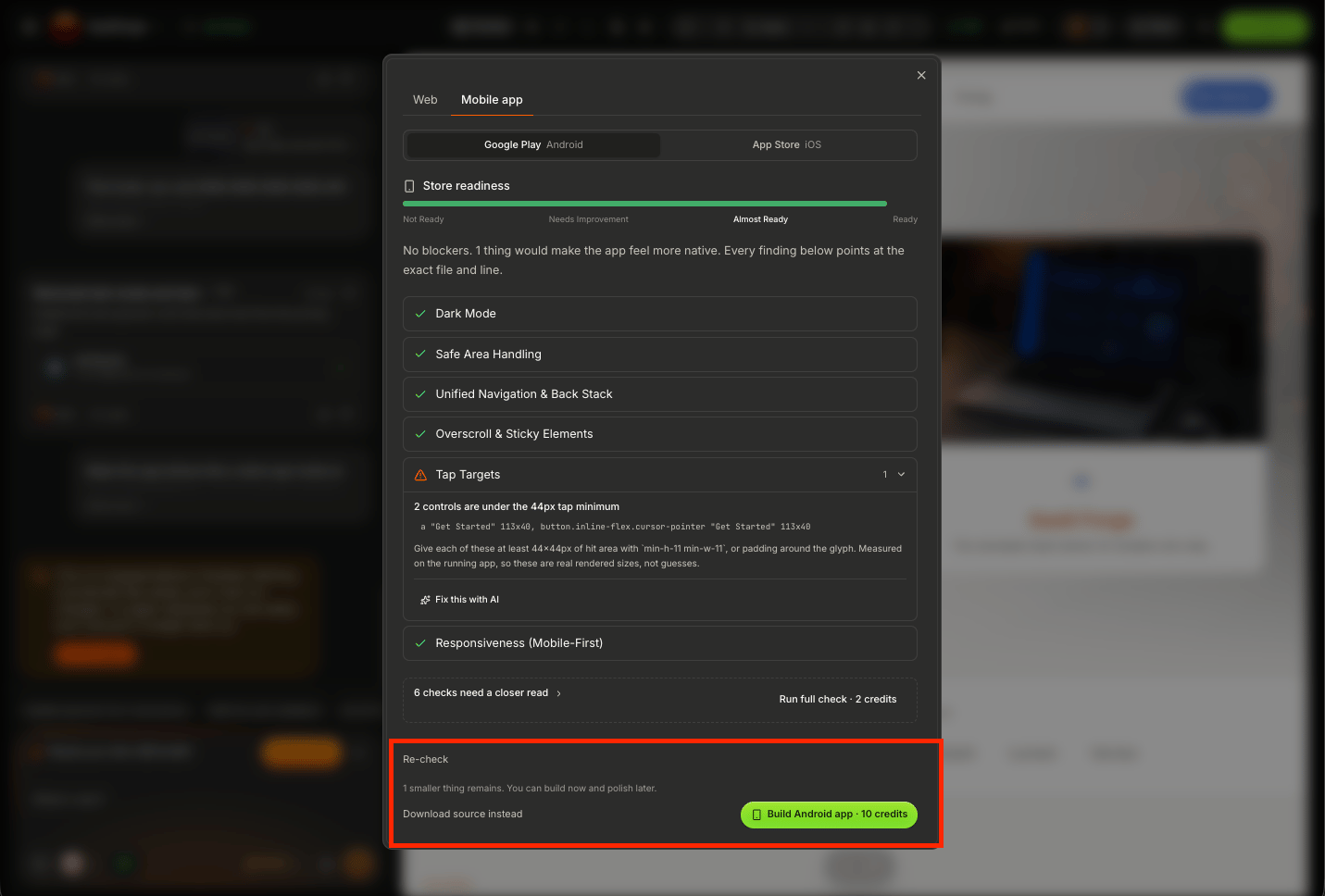
Option 1: Build the Android App
If you want AIWA to create the Android application for you, choose the option to Build App. AIWA takes the mobile-ready project and starts the Android build process.Build Your APK
Start the Android build from the Mobile Export interface.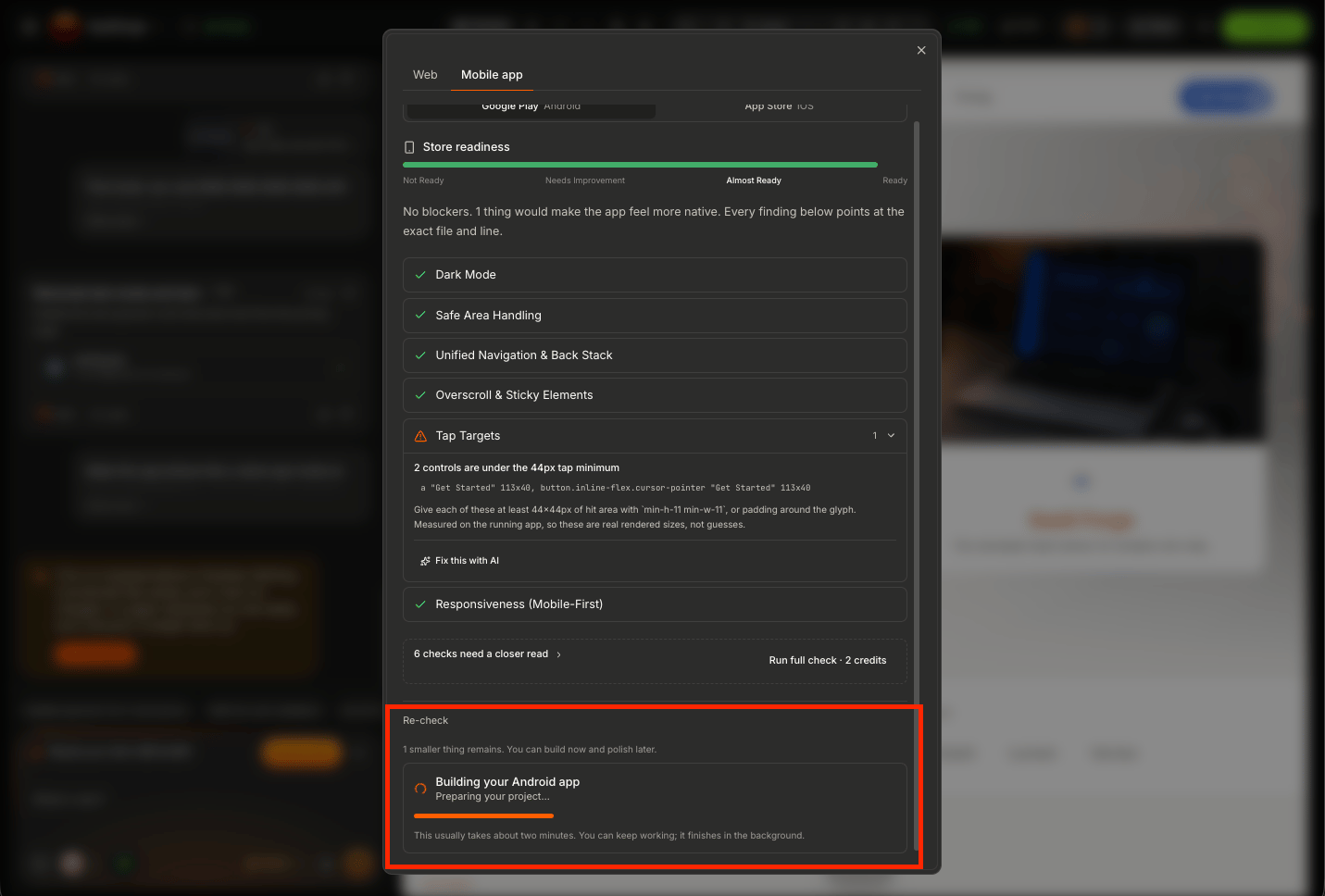
When Your Android Build Is Ready
Once the build completes successfully, AIWA makes the generated Android application available for download.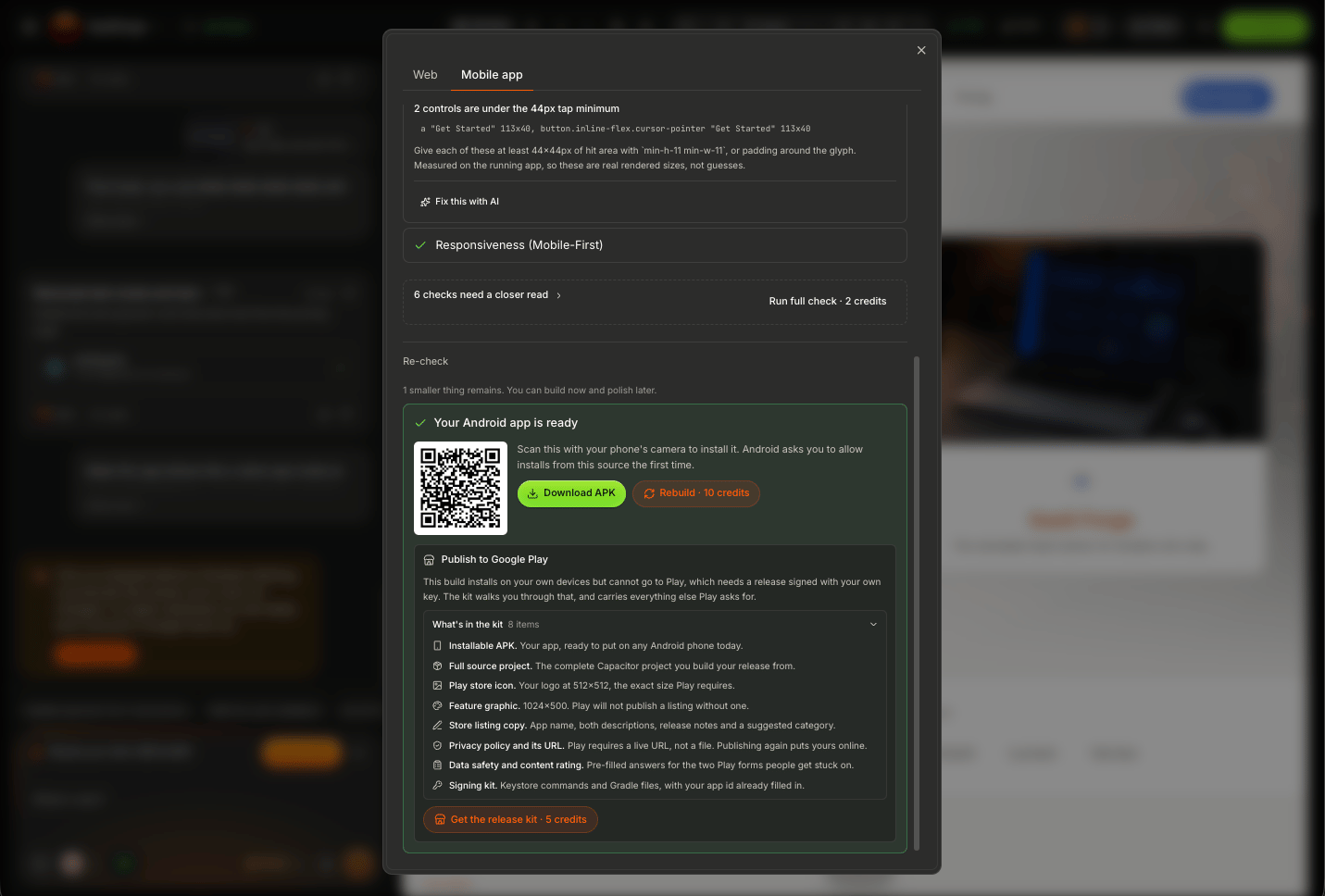
What Is an APK?
APK stands for Android Package Kit. It’s an Android application package that can be installed on compatible Android devices. Your generated APK can be used to test the mobile version of your AIWA application before moving toward public distribution.Install and Test Your App
Generating the APK isn’t the end of the process. Install the application on an Android device and test it. Don’t only check whether the app opens. Test the actual workflows your users depend on. For example, if you’ve built a booking application:What Should You Test?
Pay particular attention to:- Authentication
- Navigation
- Forms
- Database functionality
- Buttons and touch interactions
- File uploads
- Images
- External links
- Integrations
- Payments, where applicable
- Important customer workflows
- Mobile layouts
Your Web and Mobile Apps Can Work Together
For applications designed around the same backend and user accounts, your web and mobile experiences can be part of the same product. For example:Option 2: Download the Source Files
You don’t have to use AIWA’s generated mobile build as your only path. Once your project is mobile-ready, you can also download the mobile source files.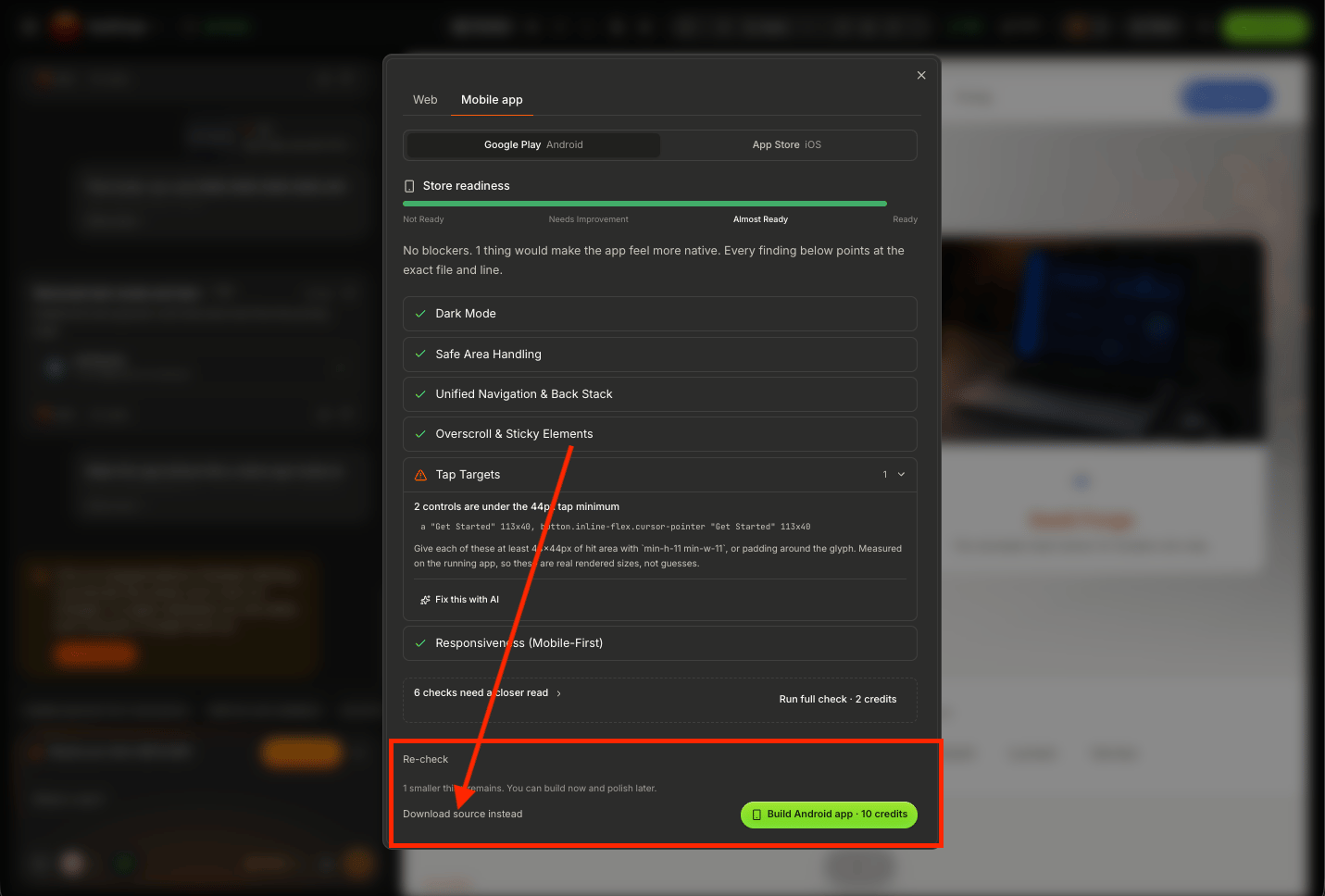
Why Download the Source?
Downloading the source can be useful when you want greater control over the mobile application. For example, you may want to:- Continue development outside AIWA
- Review the generated mobile code
- Make custom changes
- Use your own development workflow
- Build the application yourself
- Hand the project to a developer
- Maintain your own mobile build process
Build vs Download Source
The choice is straightforward. Build App Choose this when you want AIWA to generate the Android build for you.For Agencies
This is particularly useful when you’re building applications for clients. You might use AIWA to handle the entire build:Fixing Problems Found After Export
Even after passing the readiness scan, you should test the actual generated Android application. If you find a problem, return to the AIWA project and describe exactly what happened. For example:The application passed the Mobile Readiness Scan, but in the Android build the bottom navigation covers the Save button on the profile screen. Fix the mobile layout without changing the desktop version.Then follow the process again:
If the Build Fails
If AIWA can’t successfully generate the Android build, check any error information provided. When asking AIWA to investigate, provide the context. For example:Expected: The mobile-ready project should generate an Android build. Mobile Readiness: Passed Actual: The Android build starts but fails before the APK is generated. Error: [PASTE ERROR] Debug the Android build issue without changing unrelated application functionality.Specific information makes troubleshooting easier.
Updating Your Android App
Your first mobile build doesn’t have to be your last. Your application might evolve from:Build Once, Keep Improving
Mobile export is part of AIWA’s broader product-development workflow. You aren’t creating a disposable mobile version. You can continue:APK Export vs Play Store Publishing
Generating your Android application and publishing it on Google Play are separate steps. AIWA gets you to:Before Moving to Google Play
Before submitting your application, make sure you’ve tested the generated build. Check:- App installs successfully
- App opens successfully
- Authentication works
- Navigation works
- Forms work
- Database functionality works
- Integrations work
- Mobile layouts work
- Important workflows work
- External links work
- No test content remains
- No sensitive credentials are exposed
Android Export Workflow
The complete AIWA Android workflow is:Next: Submitting to the Play Store [Agency]
The next page is Submitting to the Play Store. That’s where we’ll cover the things that AIWA doesn’t need during the build, but Google may require during store submission, such as:- Google Play Developer account
- Creating the app in Play Console
- App name and store listing
- App icon
- Screenshots
- App description
- Privacy policy
- Data safety information
- Testing requirements
- Uploading the Android release
- Review and approval
- Publishing updates
Submitting to the Play Store
Publish your Android build on the Google Play Store.