
- Sales demos
- Consultations
- Customer onboarding
- Interviews
- Virtual appointments
- Team meetings
- Coaching sessions
- Support calls
Google Meet vs Google Calendar
These connectors often work together, but they solve different parts of the experience. Google Meet provides the video meeting. Google Calendar manages the calendar event. For example:Before You Start
You’ll need the Google account and authorization required by AIWA’s Google Meet connector. Depending on the workflow, you may also want to connect Google Calendar so the meeting can be added to a calendar event and shared with attendees.The exact Google permissions required depend on the functionality supported by the connector and the workflow you’re building.
Connect Google Meet to AIWA
Open your AIWA project and go to Connectors. Find Google Meet and select it.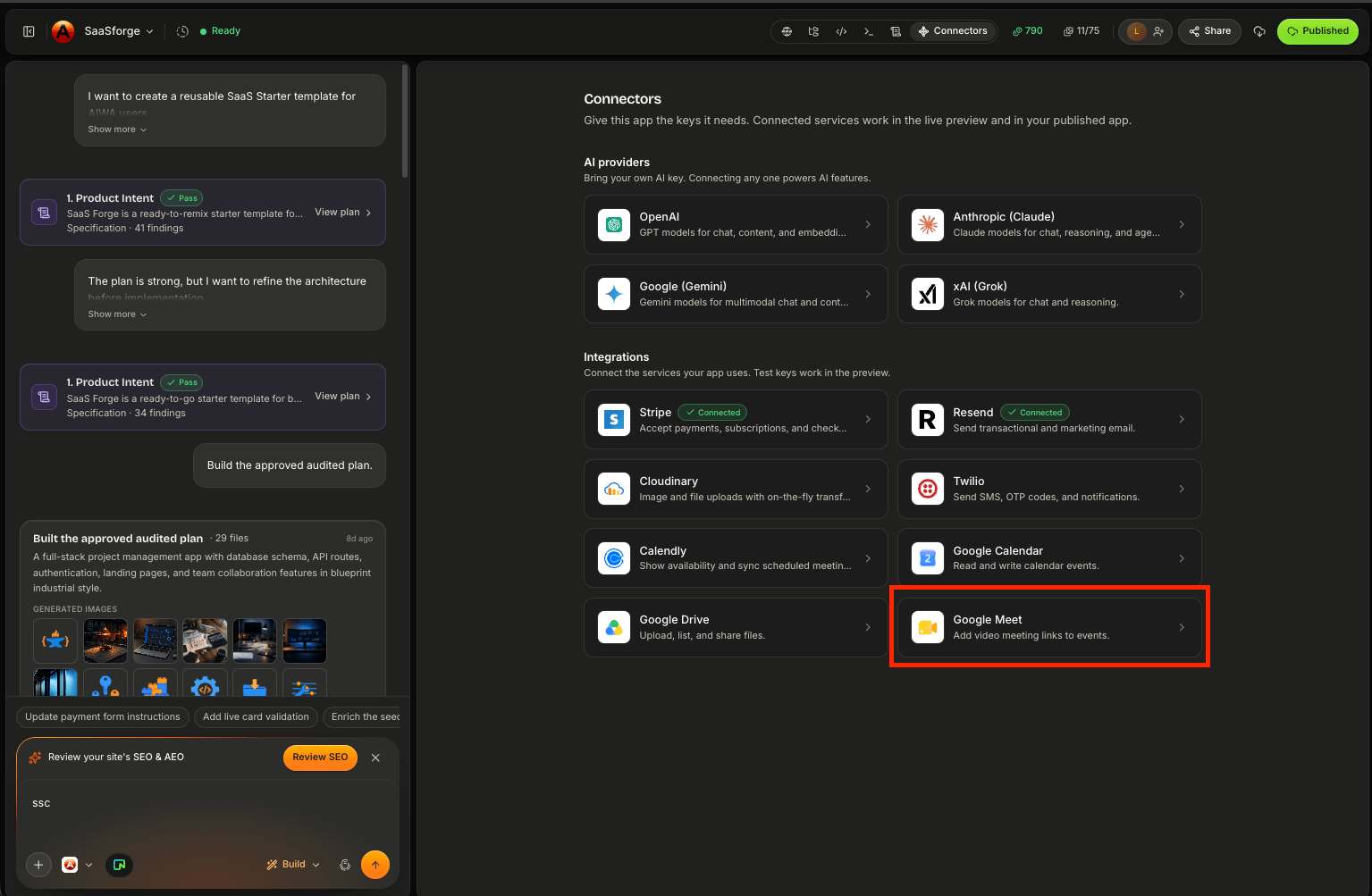
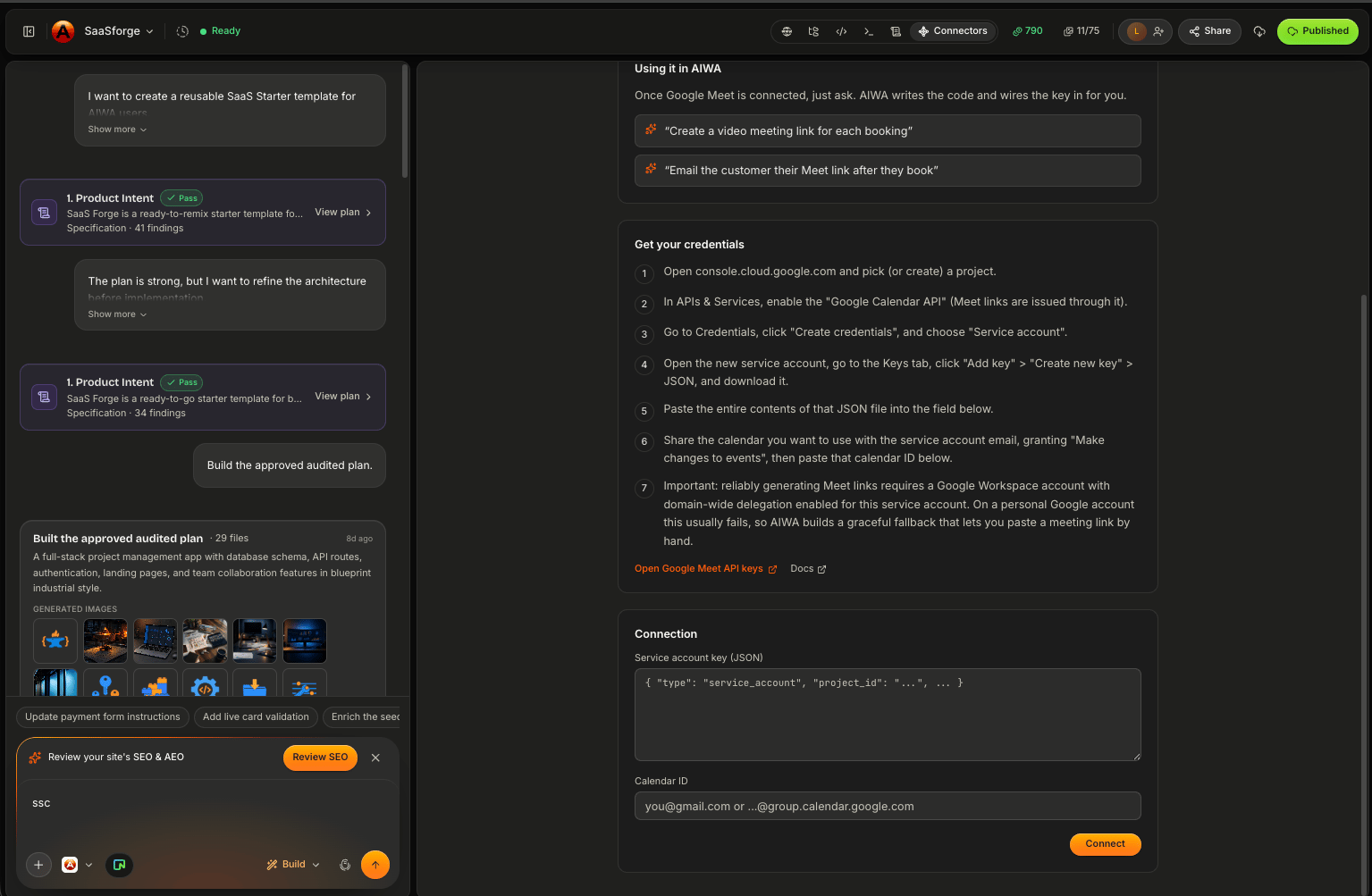
Create Your First Meeting Workflow
Suppose you’re building a consultation platform. Tell AIWA:When a customer successfully books a virtual consultation, create a Google Meet link and attach it to the appointment. Show the meeting link on the customer’s booking page.Conceptually:
Example: Sales Demo
For a SaaS sales workflow:After a qualified lead schedules a product demo, create a Google Meet meeting and add the meeting link to the demo record.You could then combine it with Google Calendar:
Create the corresponding Google Calendar event, add the customer as an attendee, and include the Google Meet link.The workflow becomes:
Example: Customer Onboarding
Suppose Agency customers receive an onboarding call. You could ask:When an Agency customer schedules onboarding, create a Google Meet meeting, add it to the onboarding appointment, and show the meeting link in their dashboard.Then:
Send the customer an onboarding confirmation email through Resend containing the date, time, and meeting link.Now several connectors work together:
Example: Virtual Appointment
For a health, coaching, consulting, or professional-services application:Allow customers to book either an in-person or virtual consultation. If they choose Virtual, create a Google Meet link and include it in the confirmed appointment.This adds conditional logic:
Save the Meeting Link
Your application may need to store the generated meeting information alongside the relevant record. For example:Save the generated Google Meet link to the appointment so both the customer and assigned team member can access it later.This prevents the meeting link from existing only temporarily.
Control Who Can See the Link
Meeting links should appear only where appropriate. For example:Show the meeting link only to the customer who owns the booking and the team member assigned to the consultation.This combines meeting functionality with authentication and authorization.
Add Attendees
When used alongside Google Calendar, you may want specific users invited. For example:Add the customer and assigned account manager as attendees to the calendar event containing the Google Meet link.This creates a more complete meeting experience for both sides.
Rescheduling
If the meeting’s date or time changes, your application should keep the surrounding workflow synchronized. For example:If the consultation is rescheduled, update the Google Calendar event while preserving the existing Google Meet link where appropriate.The exact behavior depends on how you’ve designed the workflow.
Cancellations
If a meeting is cancelled:Mark the appointment as cancelled, update or remove the associated Google Calendar event, and prevent the cancelled appointment from appearing in upcoming meetings.You may also choose to keep the meeting record for historical purposes.
Avoid Duplicate Meetings
A repeated page load should not create a new Meet link every time. Tie meeting creation to a real business event, such as:Appointment confirmedrather than:
Booking page openedConceptually:
Google Meet + Calendly
You can also combine Google Meet with Calendly. For example:Google Meet + Resend
After creating a meeting, you can communicate the details. For example:After the virtual consultation is confirmed, send the customer an email containing the appointment time and Google Meet link.The workflow becomes:
Google Meet + Twilio
For reminders:Send the customer an SMS reminder 30 minutes before the Google Meet consultation and include the meeting link.Be mindful of SMS length and applicable messaging requirements.
Time Zones
Virtual meetings often involve users in different locations. The Meet link itself isn’t timezone-specific, but the surrounding event information is. Make sure the application clearly displays the meeting time in the appropriate timezone. For example:Common Problems
Meeting link isn’t created
First determine whether the main appointment or booking succeeds. For example:The booking is saved correctly, but no Google Meet link is generated.That isolates the issue to the Meet portion of the workflow.
Meet link exists but isn’t saved
Tell AIWA:Google Meet creates the meeting successfully, but the link disappears after refreshing the booking page. Save the meeting reference to the appointment record.
Duplicate meeting links appear
Tell AIWA:One confirmed appointment is creating multiple Google Meet links. Audit the trigger and ensure one appointment maps to one meeting.
Calendar event exists but has no Meet link
If you’re using Calendar + Meet together:The Google Calendar event is created correctly, but it doesn’t include the Google Meet link. Debug the meeting creation and event association without changing the appointment workflow.
Authorization fails
Check:- Correct Google account
- Authorization completion
- Required permissions
- Whether the connection is still active
Debugging Google Meet
A good Debug Mode request looks like:Expected: After a virtual consultation is confirmed, the application should create a Google Meet link and save it to the appointment. Actual: The appointment saves correctly, but no meeting link appears. Google Calendar event creation is working. Error: [PASTE ERROR IF AVAILABLE] Debug the Google Meet portion of the workflow without changing the booking or calendar functionality.This gives AIWA a narrow problem to investigate.
Test Your Meeting Workflow
Before publishing, test:- Meeting creation
- Saved meeting link
- User access
- Calendar association
- Attendees
- Rescheduling
- Cancellation
- Duplicate prevention
- Time zones
- Email confirmations
- Mobile access
- User permissions
A Good Google Meet Prompt
Define:- Trigger: When should the meeting be created?
- Participants: Who attends?
- Storage: Where should the link be saved?
- Visibility: Who can access it?
- Calendar: Should an event also be created?
- Notifications: How should participants receive the link?
When a customer confirms a virtual consultation, create a Google Meet meeting and save the link to the appointment. Create a matching Google Calendar event using the appointment date and time, add the customer and assigned consultant as attendees, and include the meeting link. Show the link in the customer’s portal and consultant dashboard. Send the customer a confirmation email through Resend. If the appointment is cancelled, update the calendar and mark it cancelled in the application.That’s a complete product workflow.
Think in Meeting Workflows
A useful model is:Next: Google Drive
Next, we’ll look at Google Drive and how AIWA-built applications can work with files and documents stored in Google Drive. We’ll cover use cases such as:- Client files
- Shared documents
- Project resources
- File-driven workflows
- Connecting application records to Drive content
Google Drive
Connect Google Drive to work with files and documents in your AIWA app.