
- AI assistants
- Long-form analysis
- Summarization
- Content generation
- Document understanding
- Classification
- Structured extraction
- Research-style workflows
- Customer support
- AI-powered product features
AIWA vs Claude
AIWA and Claude play different roles. You use AIWA to build and evolve your product. Claude can then become one of the AI capabilities inside the application you build. For example:Build a legal document review platform where users can upload contracts and receive a structured analysis.AIWA builds the application. Claude can power the analysis step. Conceptually:
Before You Start
You’ll need an Anthropic account and the credentials required by AIWA’s Anthropic connector. API usage may incur charges based on your Anthropic account, model selection, and usage.Model availability, pricing, and rate limits are controlled by Anthropic and may change over time.
Connect Anthropic to AIWA
Open your AIWA project and go to Connectors. Find Anthropic and select it.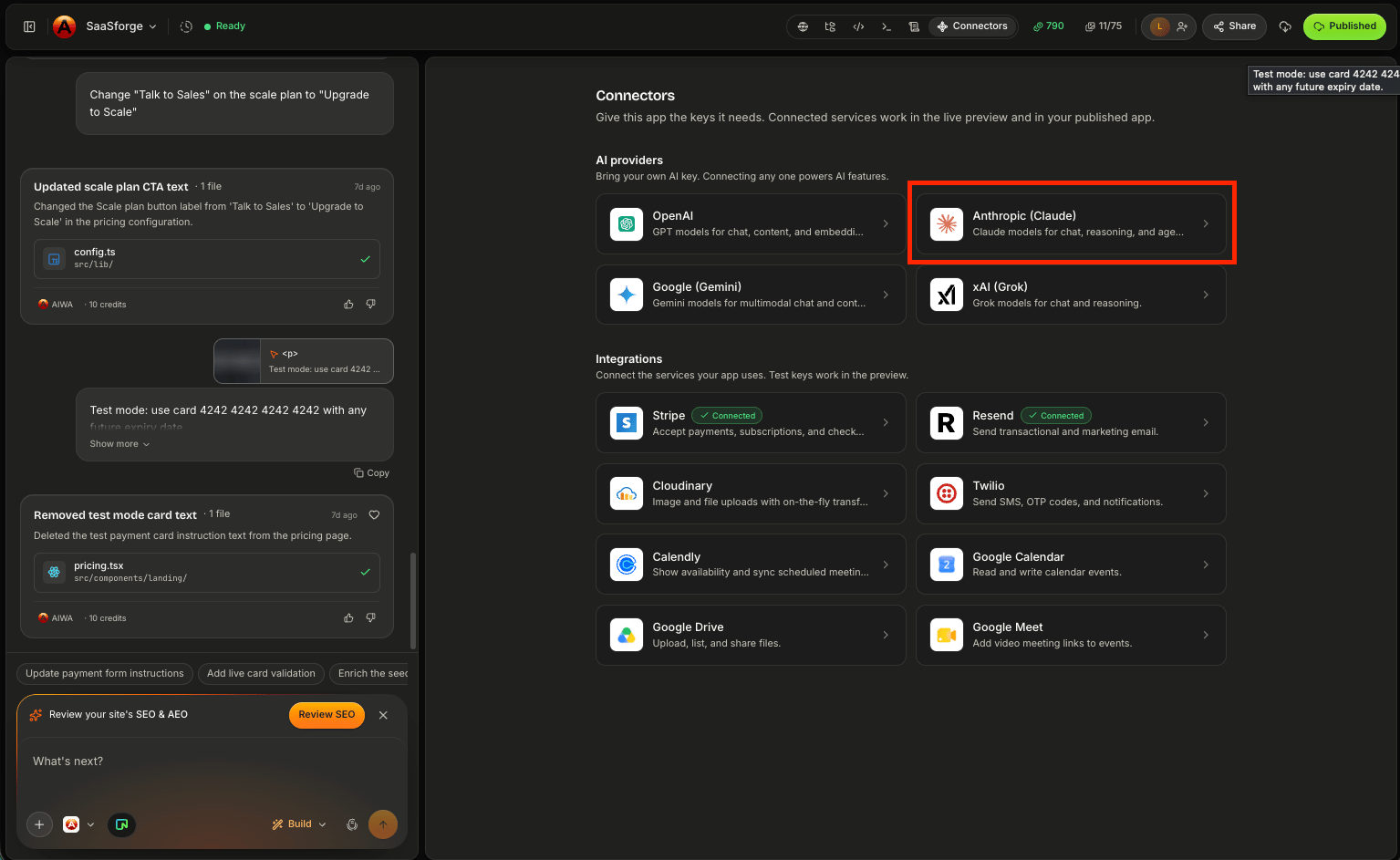
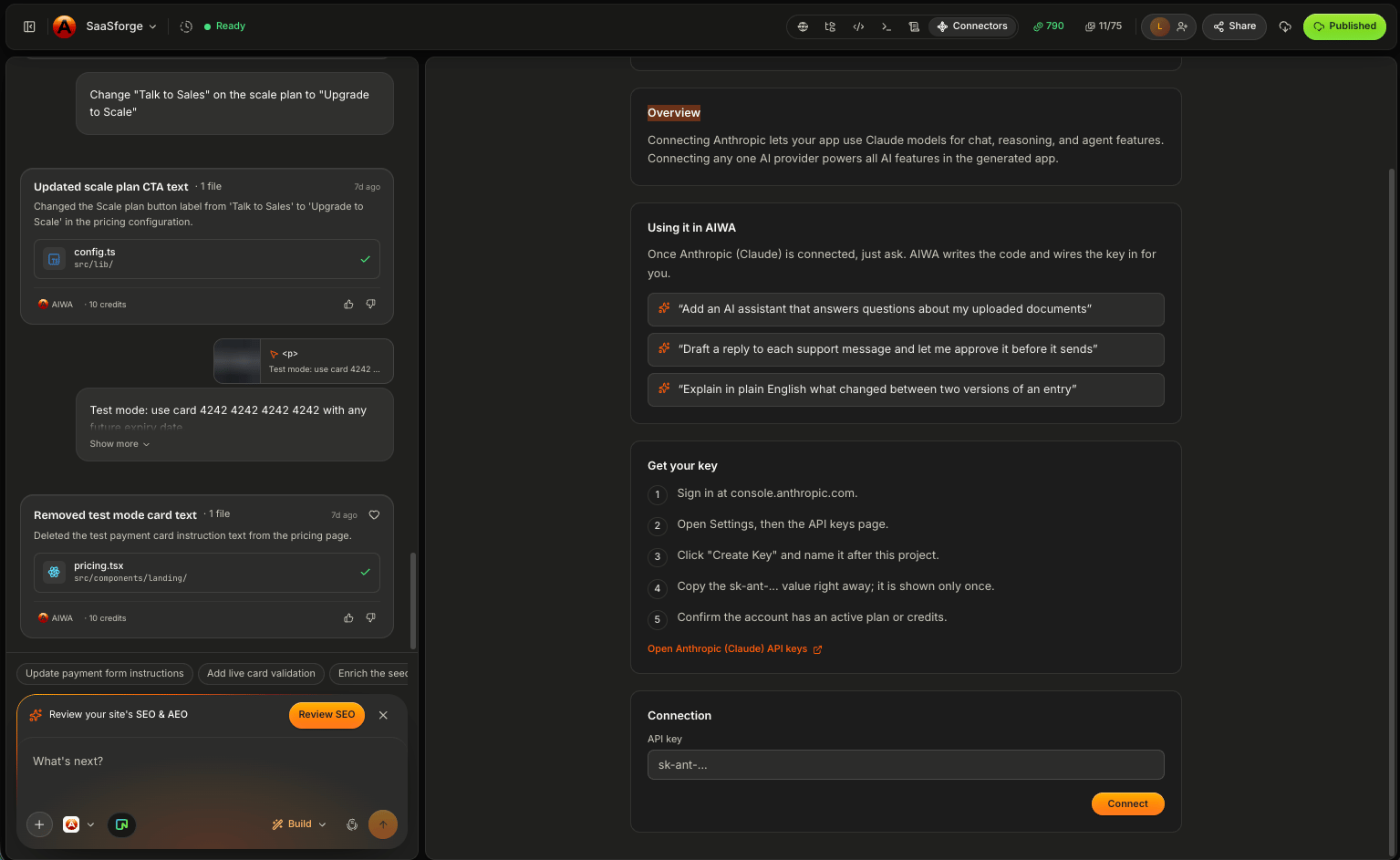
Build Your First Claude Feature
Suppose you’re building a document analysis application. You could tell AIWA:Add a Contract Summary feature using Claude. Users should upload a contract and receive an executive summary, key obligations, important dates, risks, and questions they should review.The workflow might look like:
Define the Input
Tell AIWA what information Claude should receive. For example:Use the contract text and the user’s selected review goal.Or:
Use the support ticket and the previous five messages in the conversation.Or:
Use the lead enquiry, budget, timeline, and recent activity.The model should receive the context it actually needs to perform the task.
Define the Output
Be clear about what you expect back. For example:Return:Or:
- Executive summary
- Key obligations
- Important dates
- Potential risks
- Recommended questions
Return sentiment, category, urgency, and a suggested next action.Structured expectations make it easier for AIWA to build a useful product experience around the model.
Example: Document Analysis
Claude can be useful in applications that need to process longer or more detailed material. For example:Add an AI document review feature. Users should upload a document and receive a concise summary, key decisions, action items, and important dates.You might then add:
Let users ask follow-up questions about the uploaded document.Now the experience evolves from one-time generation into an AI-powered document workspace.
Example: Support Assistant
For a customer support application:Add a Draft Reply button using Claude. Use the current support ticket and recent conversation history to generate a suggested response. Show the draft in the reply editor for the agent to review before sending.Conceptually:
Example: Knowledge Assistant
Suppose your application contains company knowledge or project documentation. You could ask AIWA:Add an AI assistant that helps team members understand project documentation. Use the relevant project context to answer questions and cite the source sections used for the answer.The application can combine stored information with Claude to create a more contextual assistant.
Example: Structured Extraction
Imagine users submit detailed business enquiries. You could ask:Use Claude to extract company name, requested service, budget, timeline, pain points, and decision-maker information from each enquiry. Save the structured result to the lead record.This turns unstructured text into data your application can use.
Use Claude for Product Workflows
Avoid thinking only in terms of:Ask Claude a question.Instead, think: Where does AI improve this workflow? For example:
Human Review
For important actions, consider keeping a person in the loop. For example:Use Claude to draft a project proposal, but require the account manager to review and approve it before it can be sent.Conceptually:
- Customer communication
- Business decisions
- Financial actions
- Sensitive content
- Important recommendations
Saving Claude Responses
Decide whether generated output should become permanent application data. For example:Save approved contract summaries to the document record.Or:
Don’t save generated drafts until the user clicks Save.Or:
Regenerate the summary only when the user explicitly requests it.This affects both product behavior and API usage.
Sensitive Information
Before sending application data to Claude, consider what information the feature actually needs. Don’t send unnecessary private information simply because it’s available. For applications handling sensitive customer or business data, make sure your use of an external AI provider fits your privacy and compliance requirements.Model Choice
Anthropic may provide multiple Claude models with different characteristics. Some may prioritize:- Speed
- Cost
- Context capacity
- Reasoning quality
- Complex analysis
This feature analyzes long documents, so quality and context handling are more important than very fast responses.Or:
This feature performs thousands of simple classifications, so prioritize speed and cost efficiency.
Check Anthropic for current model availability, capabilities, and API pricing.
Control Output Length
AI responses don’t always need to be long. For example:Return a maximum 5-bullet executive summary.Or:
Keep suggested support replies under 150 words.Or:
Return only the structured fields required by the application.Limiting unnecessary output can improve the user experience and help control API usage.
Handle Loading States
AI generation can take time. Your application should clearly show when Claude is working. For example:Analyzing document…You can ask AIWA:
Show a loading state while Claude processes the document and disable the Analyze button until the current request completes.
Handle Failed Requests
AI requests can fail. For example:If analysis fails, preserve the uploaded document and let the user retry without uploading it again.The main workflow shouldn’t lose the user’s work simply because one AI request failed.
Avoid Unnecessary Requests
Don’t regenerate expensive AI output every time a page loads unless that’s actually required. For example:Save the generated document summary and display the stored version whenever the user returns. Only call Claude again when the user clicks Regenerate.This can improve speed and reduce API usage.
Common Problems
Claude feature doesn’t respond
Check whether:- The Anthropic connector is configured
- The server request is being made
- Anthropic returns an error
- The application receives the response
- The interface correctly displays it
Output quality is poor
The issue may be the instructions or context sent to Claude rather than the connection itself. For example:The contract analysis is too generic. Improve the prompt so it explicitly identifies obligations, termination clauses, payment terms, deadlines, and unusual risks.
Output format changes
If your application depends on a specific structure, require and validate structured results. For example:Ensure the classifier always returns category, urgency, sentiment, and recommendedAction in a predictable structured format before saving it.
Response is slow
Ask AIWA to inspect:- Model choice
- Input size
- Requested output length
- Number of calls
- Application workflow
Usage is high
Check whether Claude is being invoked unnecessarily. For example:Audit the document detail page and make sure the AI analysis isn’t being regenerated every time the page loads.
Debugging Anthropic
A good Debug Mode request could be:Expected: When the user clicks Analyze, Claude should return a document summary and key risks. Actual: The loading state appears, then disappears without showing any result. The uploaded document is available and loads correctly. Error: [PASTE ERROR IF AVAILABLE] Debug the Anthropic analysis workflow without changing the document upload feature.Don’t include your API key in the prompt.
Test Your Claude Feature
Before publishing, test:- Normal input
- Very short input
- Large input
- Missing input
- Loading state
- Failed generation
- Retry behavior
- Output structure
- Saved results
- Regeneration
- User permissions
- Unexpected user input
- API usage behavior
A Good Claude Prompt for AIWA
When asking AIWA to build a Claude-powered feature, define: Purpose What should Claude accomplish? Input What information does it receive? Output What format should it return? User experience How does the user interact with the result? Persistence Should the output be saved? Permissions Who can use it? For example:Add a Contract Review feature using Claude. Authorized users should upload a contract and click Analyze. Use the document content to return an executive summary, important obligations, payment terms, deadlines, termination conditions, and potential risks. Display the result in structured sections. Save the approved analysis to the document record and let users regenerate it manually if needed.
OpenAI or Claude?
You don’t necessarily need both providers in every application. The right provider depends on your product requirements, preferred models, cost considerations, and the type of AI experience you’re building. You can even design an application that supports multiple providers when there’s a clear product reason to do so. The key principle remains the same: Choose the provider that best supports the experience you’re trying to build.Next: Google (Gemini)
Next, we’ll look at Google Gemini and how to connect Google’s AI models to applications built with AIWA. We’ll focus on:- Connecting Gemini
- Building AI features
- Example workflows
- Provider selection
- Troubleshooting
Google (Gemini)
Connect Gemini and use Google’s AI models inside your AIWA app.