
- Creating calendar events
- Adding appointments to calendars
- Scheduling meetings
- Creating events from bookings
- Adding attendees
- Managing event details
- Connecting CRM activities to calendars
- Building calendar-driven workflows
Google Calendar vs Calendly
Calendly and Google Calendar are related, but they solve different problems. Calendly Use Calendly when you want someone to choose an available time and schedule with you. For example:Before You Start
You’ll need a Google account and the authorization required by AIWA’s Google Calendar connector. The Google account you connect determines which calendar resources your application can access based on the permissions granted.Only grant the permissions your application actually needs. The available Google Calendar functionality depends on the authorization and capabilities supported by the connector.
Connect Google Calendar to AIWA
Open your AIWA project and navigate to Connectors. Find Google Calendar and select it.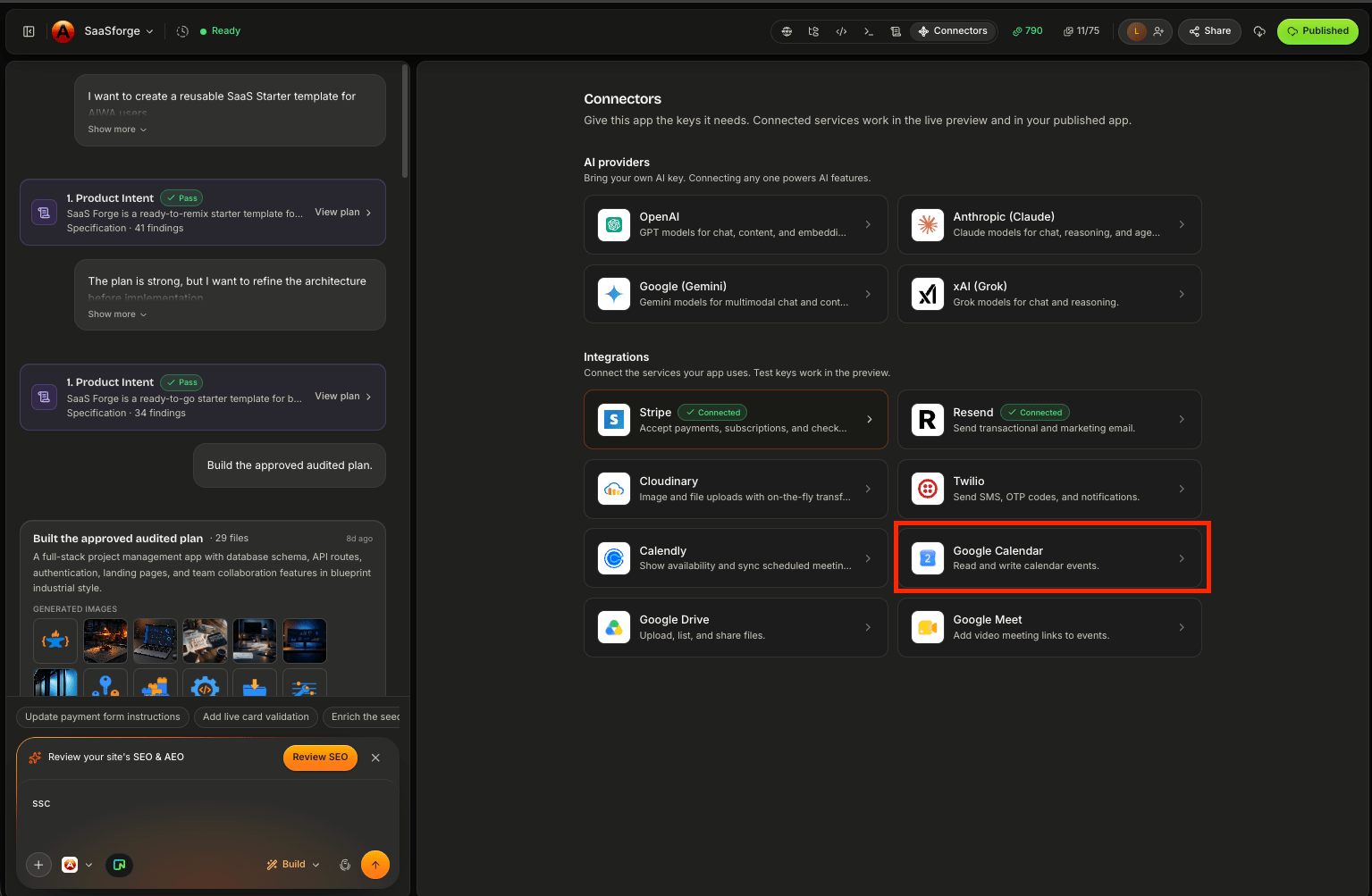
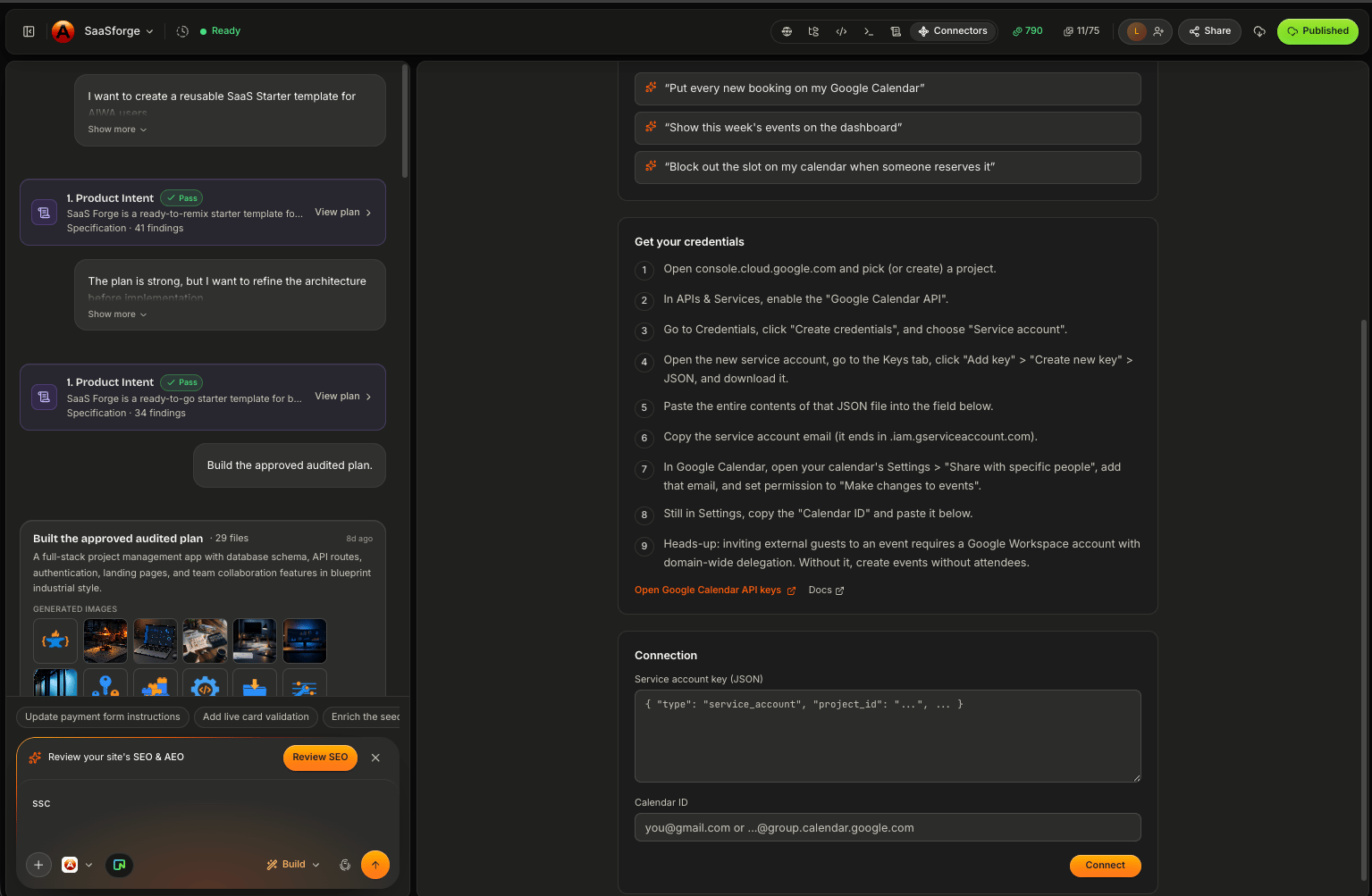
Create Your First Calendar Event
Suppose you’re building a consultation booking application. You could tell AIWA:After a consultation is successfully confirmed, create a Google Calendar event containing the customer’s name, consultation type, date, time, and contact information.Conceptually:
Define the Event Details
Be clear about what should appear in the calendar event. For example:Create a 60-minute calendar event titled “Strategy Consultation: Sarah Chen.” Include the customer’s email, phone number, booking reference, and notes in the event details.Useful event information may include:
- Event title
- Start date and time
- End date and time
- Description
- Attendees
- Location
- Meeting information
- Customer details
- Internal reference
Example: Appointment Booking
Suppose you’re building an appointment system for a salon. A customer chooses:When a Hair Consultation is confirmed with Jessica, create the corresponding event on the connected Google Calendar. Include the customer’s name, email, phone number, service, and booking reference.Now your internal calendar can reflect activity happening inside the application.
Example: CRM Follow-Up
Calendar functionality isn’t limited to customer appointments. Imagine a salesperson is working with a lead. You could build:Add a Schedule Follow-Up action to each lead. The sales representative should choose a date and time, add notes, and create the follow-up as a Google Calendar event.The workflow becomes:
Example: Customer Onboarding
Suppose a new customer needs an onboarding meeting. You could ask:When an Agency customer schedules their onboarding session, create a calendar event containing their company name, primary contact, plan, and onboarding notes.The account manager now sees the onboarding session directly in their calendar.
Add Attendees
Some events need participants. For example:Create the consultation event and add the customer’s email address as an attendee.Or:
Add the customer, account manager, and implementation specialist to the onboarding meeting.Conceptually:
Use Application Data
Calendar events can use information already stored in your application. Suppose your CRM knows:When creating a meeting from a lead record, automatically include the lead’s name, company, email, deal value, and assigned sales representative.Your database becomes context for the calendar workflow.
Keep Calendar and Application Data Connected
Creating an event is only part of the workflow. Your application may also need to remember the relationship between the event and the corresponding record. Conceptually:Updating Events
Plans change. Suppose an appointment moves from:When an appointment is rescheduled, update the existing Google Calendar event rather than creating another event.Conceptually:
Cancelling Events
The same principle applies to cancellations. For example:When a confirmed consultation is cancelled, cancel or remove the corresponding Google Calendar event and update the booking status.Your systems should remain synchronized.
Avoid Duplicate Events
One confirmed booking should generally create one calendar event. Refreshing a page or reopening a booking shouldn’t create another one. For example:Time Zones
Time zones are especially important with calendars. Imagine:Google Calendar + Google Meet
Google Calendar can also work alongside the Google Meet connector. For example:When a customer schedules a remote consultation, create a Google Meet meeting and add it to the corresponding Google Calendar event.We’ll cover Google Meet on the next page.
Google Calendar + Resend
You can also create follow-up communication around calendar workflows. For example:After a consultation is confirmed, create the Google Calendar event and send the customer a confirmation email through Resend containing the appointment details.This is where connectors become especially powerful: multiple services can participate in one application workflow.
Google Calendar + Twilio
For appointment-driven products:Create the appointment on Google Calendar and send the customer an SMS reminder 24 hours before the meeting.Conceptually:
Permissions
Calendar access can involve sensitive information. Only request and use the access required for your feature. For example, there’s a difference between an application that needs to:Create calendar eventsand one that needs to:
Read and manage existing calendar information.The appropriate authorization depends on what your application actually needs to do.
Google may show users which permissions the application is requesting during authorization.
Common Problems
Calendar event isn’t created
First check whether the main application action succeeds. For example:The booking is saved successfully, but no Google Calendar event appears.That isolates the issue to the calendar portion of the workflow.
Event appears at the wrong time
This is often worth checking as a timezone issue. Tell AIWA:The booking shows 2:00 PM WAT correctly in the application, but the Google Calendar event appears one hour later. Debug the timezone handling without changing the booking time itself.
Duplicate events appear
Tell AIWA:One confirmed appointment sometimes creates multiple Google Calendar events. Audit the event creation trigger and ensure each booking maps to only one calendar event.
Event doesn’t update after rescheduling
Tell AIWA:Rescheduling updates the booking correctly, but the original Google Calendar event remains unchanged. Update the existing calendar event when the booking is rescheduled rather than creating another event.
Authorization fails
Check whether:- The correct Google account is being used
- Authorization was completed
- Required permissions were granted
- The connection is still valid
Debugging Google Calendar
A good Debug Mode request could look like:Expected: After a consultation is confirmed, a Google Calendar event should be created for the appointment. Actual: The booking saves correctly in the application, but no calendar event appears. The booking date and time are stored correctly. Error: [PASTE ERROR IF AVAILABLE] Debug the Google Calendar portion of the workflow without changing the booking functionality.This gives AIWA a specific integration boundary to investigate.
Test Your Calendar Workflow
Before publishing, test:- Event creation
- Event title
- Start and end time
- Time zones
- Description
- Attendees
- Rescheduling
- Cancellation
- Duplicate prevention
- Application-to-calendar relationship
- Authorization failures
- Mobile experience
- Different user roles
A Good Google Calendar Prompt
A strong request defines:- Trigger: When should the event be created?
- Calendar: Where should it go?
- Details: What should it contain?
- Attendees: Who should participate?
- Updates: What happens if the source record changes?
- Cancellation: What happens if it’s cancelled?
When a consultation booking is confirmed, create a Google Calendar event using the booking’s start and end time. Title it with the consultation type and customer’s name. Include their contact information and booking reference in the description and add the customer as an attendee. If the booking is rescheduled, update the existing event. If it’s cancelled, cancel the corresponding calendar event. Ensure one booking cannot create duplicate events.That’s significantly stronger than:
Add Google Calendar.
Think in Calendar Workflows
A useful mental model is:Next: Google Meet
Next, we’ll add Google Meet. We’ll cover how AIWA-built applications can incorporate video meetings into workflows such as:- Sales demos
- Consultations
- Interviews
- Customer onboarding
- Team meetings
- Virtual appointments
Google Meet
Connect Google Meet to add video meetings to your AIWA app workflows.