
Custom domains are available on eligible AIWA plans, starting with Solo.
What Is a Custom Domain?
When you first publish a project, AIWA provides a live URL you can use to access and share it. A custom domain lets you replace that public-facing address with a domain you own. For example:Before You Start
You’ll need:- A published AIWA project
- A domain you own
- Access to the domain’s DNS settings
- An AIWA plan that supports custom domains
Root Domains and Subdomains
You can connect a root domain or use a subdomain depending on how you want your application to be accessed. Root domainConnect a Custom Domain
First, publish your AIWA project. Then open the publishing/domain settings for the project and choose the option to connect a custom domain.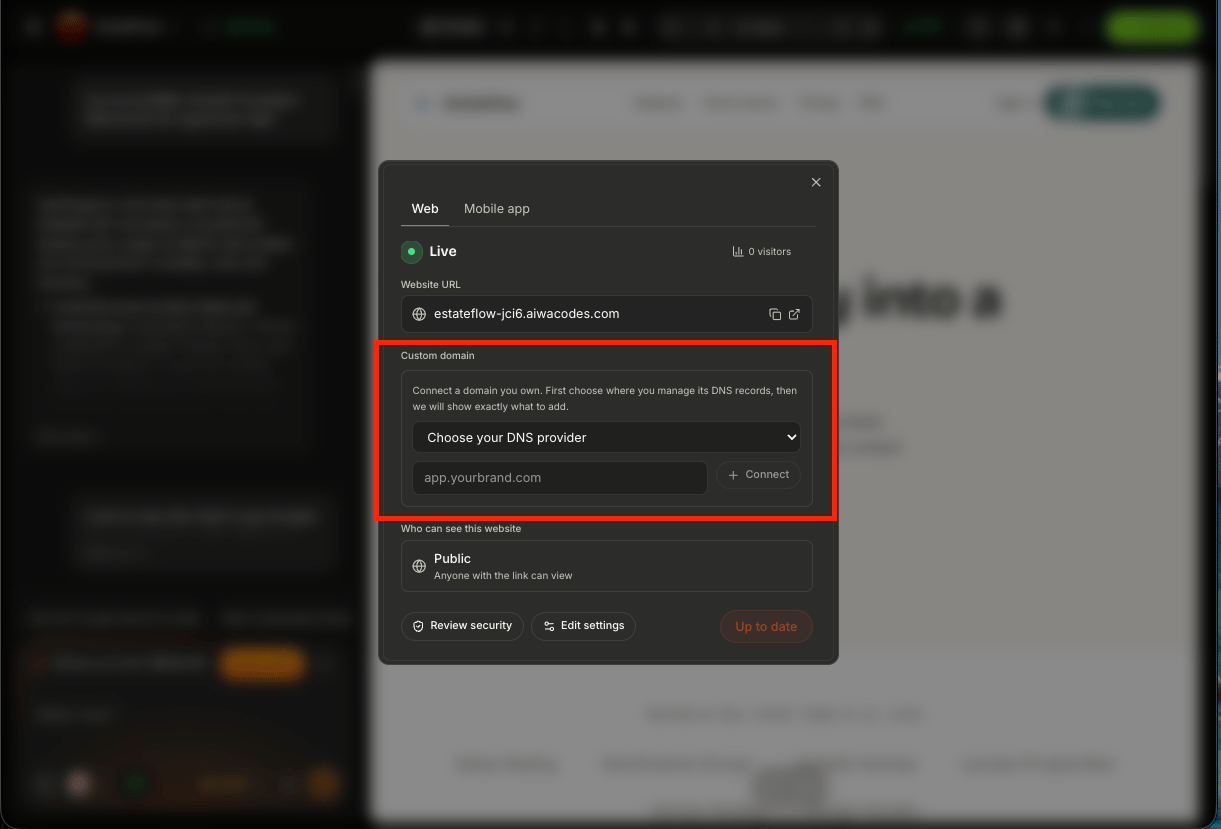
Configure Your DNS
Your domain’s DNS tells browsers where your application is hosted. After entering your domain in AIWA, you’ll be given the DNS record or records required for the connection.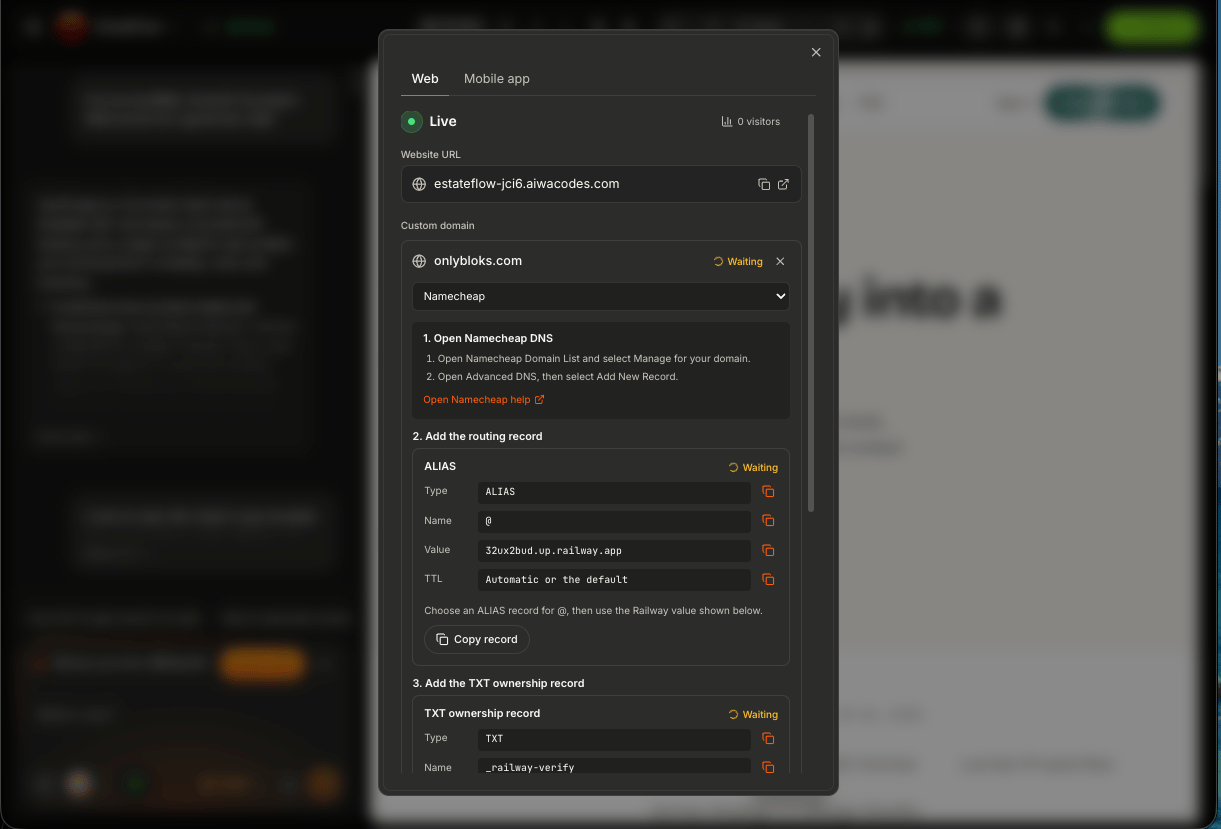
Understanding DNS Records
Depending on the domain configuration, you may encounter records such as:Example: Connecting a Subdomain
Suppose your company owns:Example: Business Website
Suppose you build a construction company website with AIWA. You own:Example: SaaS Application
For a SaaS business, you might separate the marketing website from the application. For example:Verify Your Domain
After adding the required DNS records, return to AIWA. AIWA needs to detect the DNS configuration before the domain can become active.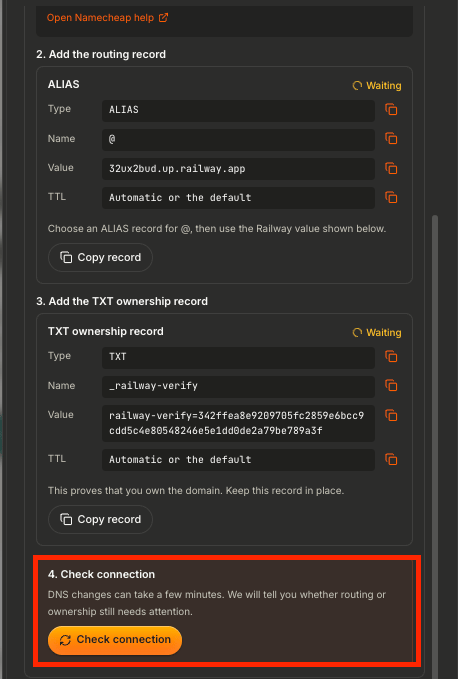
DNS Propagation
When you change DNS records, the update has to propagate across DNS infrastructure. This means your domain may not start working instantly. You might see:Don’t Repeatedly Change DNS Records
If you’ve entered the exact records AIWA requested, avoid repeatedly deleting and recreating them while waiting for propagation. Doing so can make troubleshooting more difficult. Instead:- Confirm the record is correct.
- Confirm you’re editing the correct domain.
- Wait for DNS propagation.
- Check the domain status again.
Existing DNS Records
Be careful when your domain is already being used for other services. Your DNS may contain records for:- Your existing website
- Verification services
- Other applications
- Subdomains
Connecting a Client’s Domain
If you’re an agency, you can also connect a client’s domain to the project you’ve built for them. For example:Multiple Client Projects
If you’re managing multiple projects, each client can use their own domain. For example:Custom Domains and Hosting
Connecting a custom domain doesn’t mean you’re moving the application to another hosting provider. The architecture remains:Custom Domain vs Self-Hosting
These are two different options. Custom domain + AIWA hostingUpdating Your Project
Once a custom domain is connected, you can continue improving your application. For example:SSL and HTTPS
Your production application should be accessed securely over HTTPS. Once your domain is correctly connected and activated, AIWA’s hosting infrastructure handles the secure connection for the published application. Users should be able to access your project through an address such as:Domain verification and secure certificate activation may require the DNS configuration to be fully propagated first.
Using www
You may want visitors to access:Common Problems
Domain stays pending
If the domain remains pending, check:- The DNS records match AIWA exactly
- You’re editing the correct domain
- The hostname is correct
- No characters were accidentally added
- DNS has had enough time to propagate
Domain verification fails
Compare the record AIWA requested with the record currently configured at your DNS provider. Pay particular attention to:- Type
- Name / Host
- Value / Target
My domain still shows my old website
Your DNS may still point to the previous hosting provider, or the updated record may not have propagated yet. Check the records for the specific hostname you’re trying to connect.Subdomain doesn’t work
For example:Domain works without www but not with www
example.com and www.example.com are separate hostnames from a DNS perspective.
Check whether both have been configured according to your intended setup.
I changed DNS but nothing happened
DNS updates aren’t always immediate. First verify that the record matches the values AIWA provided, then allow time for propagation.My email stopped working
If this happened immediately after changing DNS, you may have accidentally modified records used for email. Don’t remove records such as mail-related MX records unless you specifically intend to change your email provider. Restore the appropriate email DNS configuration through your provider if necessary.Debugging a Custom Domain
A useful support or Debug Mode report looks like:Domain: app.example.com AIWA Status: Pending Verification DNS Provider: [Provider] Record Type: CNAME Host: app Expected Target: [VALUE SHOWN BY AIWA] Current Target: [VALUE IN DNS] The AIWA live URL works correctly, but the custom domain doesn’t. Help me identify the domain configuration issue.
Test After Connecting Your Domain
Once AIWA shows the domain as active, open it and test the application. Check:- Homepage loads
- HTTPS works
- Navigation works
- Authentication works
- Forms work
- Images load
- API functionality works
- Integrations work
- Mobile layout works
- Redirects behave correctly
- www/root domain behavior is correct
A Good Domain Setup Workflow
The complete process is:Your Project. Your Brand.
AIWA handles the application and hosting. Your users see your brand.Next: Version History & Restore
Next, we’ll cover Version History & Restore. This is important because building software is iterative, and sometimes a change doesn’t work the way you expected. We’ll cover:- What versions are
- How AIWA tracks project changes
- Viewing previous versions
- Restoring an earlier version
- When you should restore vs ask AIWA to fix something
- Protecting working functionality while iterating
Version History & Restore
View project versions and restore a previous version when needed.